
How Zoom Screen Shares Expose API Keys (And What to Do Before Your Next Call)
Zoom screen sharing happens fast. Someone asks you to share your screen to debug a problem, and within seconds your entire desktop is visible to everyone on the call. There is no preparation window. No checklist. You shared, and now the race begins to not show something sensitive before you get the context you need.
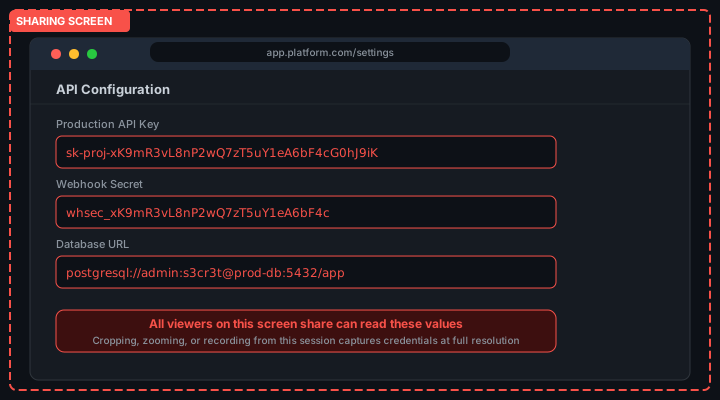
API key exposure on Zoom is different from live streaming exposure. On a Twitch stream, the audience is anonymous. On a Zoom call, the audience is your colleagues, your clients, or your prospects. The exposure is more controlled in one sense . fewer people . and more consequential in another, because the people on the call know exactly who you are and what you are working on.
Why Zoom Shares Are Higher Risk Than They Seem
Most developers think of Zoom screen sharing as a controlled, temporary exposure. You share, you show what needs to be shown, you stop sharing. The session is ephemeral. There is no recording (usually).
This mental model underestimates the risk in three ways. First, Zoom recordings exist whenever the host enables them. If your client or your manager records the call, the recording contains every second of your screen share in full resolution. You do not control whether recording is enabled. You may not even know it is happening.
Second, Zoom participants can take screenshots at any time. There is no notification when someone screenshots. A participant who spots a credential can screenshot it before you scroll away. The screenshot is theirs permanently.
Third, Zoom shares frequently extend longer than intended. You share to show one thing, someone asks a follow-up question, you navigate to answer it, and now you are in parts of your environment you did not intend to share. Each navigation step is a potential exposure.
The Highest-Risk Moments in a Zoom Screen Share
The Share Button Lag
When you click share in Zoom, there is a short delay before sharing begins. During this delay, you have a window to close sensitive tabs and clear your terminal. Most developers do not use this window because they are already focused on what they are about to show.
Training yourself to use the 2-3 second Zoom share delay as a preparation window is a simple habit that catches the most obvious exposures. Close any tabs that should not be shared before the share becomes active.
Dashboard Navigation During Technical Discussions
Technical calls often involve navigating to dashboards mid-call to look something up. You need to check an API usage limit, verify a configuration, or confirm a key is in place. The dashboard you navigate to likely has credential values visible.
This navigation is spontaneous. You did not plan to visit the API keys page during the call. The conversation led there. Your preparation before the call did not cover it because you did not anticipate it.
# Common destinations that show credentials mid-Zoom-call
# OpenAI Platform -> API Keys -> shows sk-proj-... values
# Stripe Dashboard -> Developers -> shows sk_live_... values
# AWS Console -> IAM -> shows access key IDs
# Vercel -> Settings -> shows project environment variables
# Netlify -> Site Settings -> Build Environment variables
Alt-Tab Between Applications
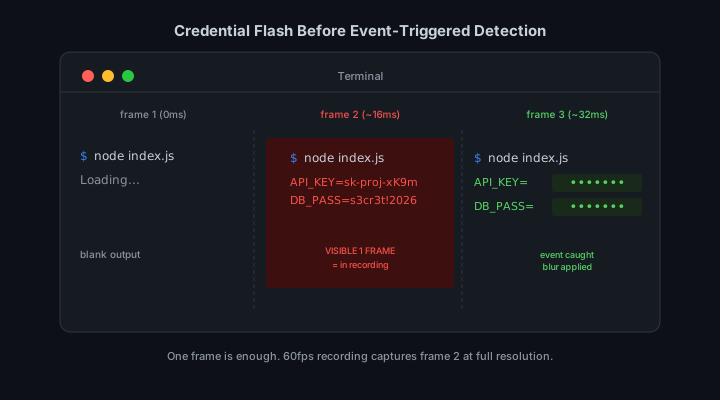
When you alt-tab while sharing your entire desktop, every application you cycle through is visible for the fraction of a second it takes to pass. If your terminal is running a process that printed credentials to the screen, that terminal is visible mid-alt-tab.
Alt-tab exposure is especially common during debugging calls where you are switching rapidly between a browser, a terminal, and an editor. The speed of switching gives a false sense of safety. Screen recordings capture individual frames. A single frame where your terminal is visible is sufficient.
Unprepared Desktop Sharing
Sharing your entire desktop instead of a specific window or application is the highest-risk Zoom share configuration. Every notification, every background application, every desktop widget is visible. A Zoom notification containing a message with credential information, a desktop widget showing environment status, or a notification from a deployment tool reporting a secret rotation . all of these become visible to the entire call.
Window-specific sharing in Zoom limits visibility to one application. Use it whenever possible. Share your browser window, not your desktop. Share your code editor window, not your screen. The smaller the surface you share, the smaller the risk.
How Zoom Recording Changes the Risk Model
When a Zoom call is recorded, the recording is saved to the host account and may be distributed afterward. Cloud recordings on Zoom are accessible to everyone the host shares the link with, and the link can be forwarded further.
A credential exposed during a recorded Zoom call is not a momentary exposure. It is a permanent record that can be accessed and shared indefinitely. The people on the original call are not the only ones who will eventually see it.
Check whether recording is enabled before sharing your screen. The Zoom UI shows a recording indicator when the call is being recorded. If recording is active and you are about to share your screen, verify your environment is clear of credentials before proceeding.
Application-Specific Share vs Full Desktop
Zoom allows you to share a specific application window rather than your full desktop. This is the single most effective manual control for reducing credential exposure on Zoom calls.
When you share a specific browser window, only that window is visible. If you have your credentials dashboard open in a different browser window, it is not shared. If you have your terminal in a separate application, it is not shared. The scope of what viewers can see is limited to exactly what you intend to show.
The trade-off is convenience. Application-specific sharing means that if you need to show something in a different application, you need to change your share. Some developers find this disruptive. The disruption is worth it. A momentary pause to change your share source is less consequential than a credential exposure.
Presentation-Layer Protection for Zoom Sessions
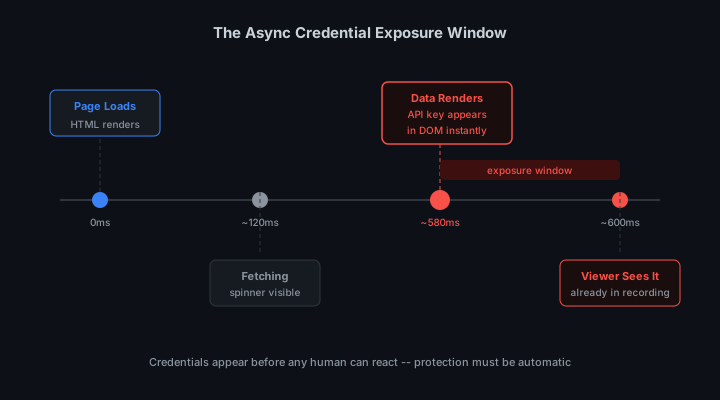
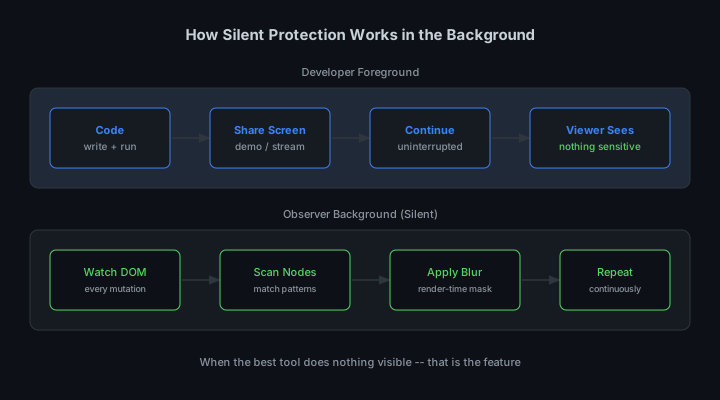
Even with application-specific sharing and careful navigation, credentials can appear unexpectedly. Async data loads render values after you have already confirmed the page looks safe. Components update in response to WebSocket events. A dashboard you have shared before refreshes and now shows a credential field you did not see previously.
StreamBlur handles these cases by watching the DOM continuously. When a credential renders in any browser surface you are sharing, the blur is applied before the screen capture . and therefore before the Zoom share . sees it. The protection is active even for the unexpected renders.
This is particularly valuable during technical calls where navigation is driven by the conversation. You cannot predict where the discussion will lead. Automated protection means you do not need to.
Setting Up a Safe Zoom Environment
The most effective preparation combines environment setup with automated protection:
- Close all terminal windows and browser tabs containing credentials before starting the call
- Use "Share a Specific Window" instead of "Share Entire Screen"
- Turn off desktop notifications (Slack, email, calendar)
- Clear shell history if it contains API keys:
history -c - Enable StreamBlur for automatic credential masking
- Test your screen share in a private meeting first to verify nothing sensitive is visible
The most effective preparation combines environment setup with automated protection:
What to Do If You Exposed a Credential on a Zoom Call
The steps are the same regardless of how the exposure happened. Speed matters more than anything else.
- Revoke the exposed credential immediately · Do not wait until after the call
- Generate a new key · Most services let you create a replacement instantly
- Update your application · Replace the old key with the new one in .env files or environment variables
- Check API usage logs · Look for unauthorized requests that happened after the exposure
- Delete the recording · If the call was recorded, delete it or edit out the sections showing the credential
- Document the incident · Note what was exposed, when, and what actions you took
The steps are the same regardless of how the exposure happened. Speed matters more than anything else.
The Zoom Recording Problem and Transcript Indexing
Zoom cloud recordings include automatic transcription for meetings with audio. The transcript is searchable and appears in the recording interface alongside the video. If a developer reads an API key aloud during a screen share, perhaps to verify its format or spell it out for a colleague, that key appears in the Zoom transcript as searchable text. Transcripts persist as long as the recording does, which is indefinitely unless the host explicitly deletes them.
The risk extends beyond the immediate meeting participants. Zoom recordings can be shared via link with anyone, including people who were not in the original meeting. A shared recording link grants access to both the video and the transcript. A developer who shared a troubleshooting session with a client may not realize that the recording's transcript contains an API key they mentioned verbally during the session. Zoom's transcript feature is enabled by default for many account types, meaning this indexing happens without explicit opt-in.
Multi-Monitor Sharing and the Wrong Screen Problem
Developers working with multiple monitors face a screen selection risk unique to multi-monitor setups. Zoom's screen sharing interface requires selecting which screen or application window to share. Selecting the wrong screen, even momentarily, exposes everything on that screen to all meeting participants. A developer who intended to share their browser window but selected their full desktop instead has shared every open window, including terminals, editors, and dashboards that may contain credentials.
The most reliable mitigation is a pre-meeting arrangement of your workspace. Move all credential-containing windows to a monitor or virtual desktop that you will not share, and share only the specific application window you intend to demonstrate rather than an entire screen. Zoom supports per-window sharing for most applications, which creates a tighter boundary around what can be accidentally exposed.
Zoom Chat and Pasted Credentials
Zoom's in-meeting chat feature is a frequent source of unintentional credential exposure. A developer troubleshooting an API integration with a colleague may paste an API key into Zoom chat for convenience. The chat message is visible to all participants in the meeting and is saved in the meeting chat log, which can be exported and shared after the meeting ends.
More subtly, pasting into Zoom chat often happens as a result of a copy-paste error. A developer who copied an API key to paste into a terminal or editor but accidentally clicked in the Zoom chat window instead has sent the key to all meeting participants before realizing the mistake. Zoom chat does not have an "unsend" feature for messages sent to everyone. Once sent, the message remains in all participants' chat logs. The practical control is never copying credential values to the clipboard during an active Zoom meeting. Use typed placeholders or pre-prepare demo environments where no real credentials are needed.
Breakout Rooms and Partial Meeting Exposure
Zoom breakout rooms create temporary sub-meetings during a larger meeting. Hosts can move participants between rooms, and participants can rejoin the main meeting at any time. A developer screen sharing in a breakout room may treat it as a more private context than the main meeting and be less cautious about what appears on screen. This is a mistake. Breakout room content is not isolated from the main meeting in terms of recording or participant access. If the host is recording the main meeting, breakout room content may be included in the recording depending on Zoom's settings.
More significantly, participants can capture screenshots or use third-party recording tools in breakout rooms just as they can in the main meeting. A credential that appears during a breakout room screen share is exposed to everyone in that room, and those participants are not necessarily the same people the developer would trust with production credentials. Treating breakout rooms with the same security discipline as main meeting screen shares is the correct approach. StreamBlur runs in the browser and protects credentials visible in web-based tools shared via Zoom regardless of whether the share is in the main room or a breakout room.
The Meeting Recording Problem
Zoom meetings can be recorded by any host or co-host, and meeting recordings can be started without explicit notification to all participants in some configurations. A developer sharing their screen in a Zoom meeting may be aware that they are presenting to human viewers, but may not be aware that the meeting is also being recorded. Recordings persist after the meeting ends and can be accessed, downloaded, and shared by anyone with the recording link.
This changes the exposure calculus significantly. A credential visible for two seconds to five human participants in a meeting is a very different risk from a credential recorded to video and stored on Zoom's cloud servers where it is potentially accessible to those five participants indefinitely. Any participant who downloaded the recording before a credential rotation also retains access to the credential after rotation, because the captured video is not updated when the credential is changed.
Zoom's recording settings are controlled by the meeting host, and participants cannot always verify whether recording is active. The recording indicator icon appears in the meeting interface, but in a busy meeting focused on a technical demonstration, the indicator is easy to miss. Treating every Zoom meeting as a potentially recorded session, regardless of whether you see the recording indicator, is the most reliable approach to credential safety.
Screen Share Permissions and What Gets Captured
Zoom's screen sharing mode offers options: share the entire screen, share a specific application window, or share a specific browser tab. Developers who choose to share their entire screen rather than a specific application create a broader exposure surface. Window focus changes, notification previews, and accidental navigation to a window containing credentials can all be captured by screen sharing when the entire screen is selected.
Application-specific sharing is safer but not immune. If a developer switches between sharing their browser and their terminal, the switch requires stopping and restarting the share, which creates a brief window where the entire desktop is potentially visible. The transition between application shares is a common moment for accidental credential exposure.
Browser tab sharing is the most contained option. Sharing only a specific browser tab ensures that credential-containing terminal windows, other browser tabs, and desktop applications are not visible to participants. The limitation is that browser tab sharing does not work for all content types and may have lower frame rates for certain applications. For demonstrations that fit within a single browser tab, it is the safest Zoom screen sharing configuration.
Post-Meeting Credential Hygiene
After any Zoom meeting where credentials were active in your application or environment, rotate the credentials regardless of whether you believe they were visible during the meeting. The rotation cost is low and the uncertainty about what was captured during the meeting, given potential recording, participant screenshots, and screen recording by individual participants, means that treating the credentials as potentially compromised is the conservative and correct response.
StreamBlur provides continuous browser-side masking during Zoom screen sharing sessions. When you share a browser window containing a developer dashboard, cloud console, or terminal emulator running in the browser, StreamBlur masks credential patterns before the content reaches the Zoom screen capture. This reduces the in-session exposure risk substantially, but it does not affect credentials visible in non-browser applications. The full Zoom security posture requires both browser-level masking and post-meeting rotation.
Stop leaking secrets on your next stream
StreamBlur automatically detects and masks API keys, passwords, and sensitive credentials the moment they appear on screen. No configuration. Works on every tab, every site.
Used by streamers, developers, and SaaS teams. Free tier covers GitHub & terminal. Pro unlocks every site.