
Credential Security for Developer Streams on Twitch: What Every Live Coder Needs to Know
Developer streams on Twitch have a specific risk profile that is different from other types of content. The viewers are technically sophisticated. Many of them are developers themselves. They know what an API key looks like, they know what a .env file contains, and they are watching closely because they are learning from what you are doing.
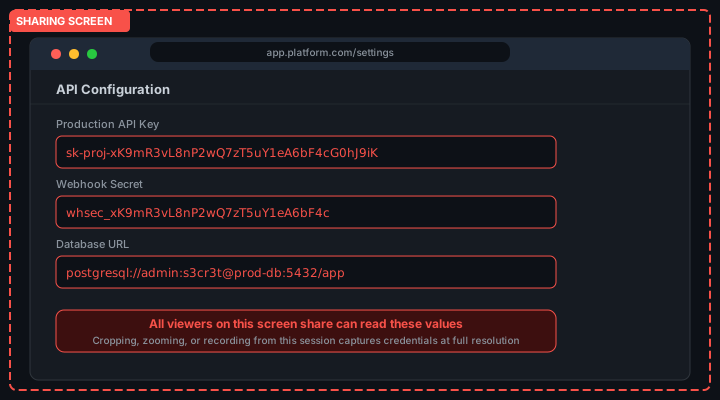
A viewer who spots a credential in a Twitch stream has a real-time advantage. They can pause, zoom in, and record before you notice. The Twitch VOD system archives your stream, giving them as much time as they want to review any frame. The credential does not need to be visible for long. A single frame at 1080p60 is sufficient.
Why the Developer Audience Makes This Riskier
Mainstream streamers who accidentally expose personal information face risk, but their audiences are typically not equipped to immediately exploit the specific type of exposure. A developer streamer faces a categorically different threat model.
Your Twitch audience watches you build things. They follow your workflow. They understand the tools you use. When an API key appears on screen, a technically capable viewer immediately recognizes it, knows which service it belongs to based on its prefix, and understands what access it grants. The knowledge gap that provides some protection in non-technical contexts does not exist in developer streams.
The Twitch chat adds another dimension. A credential exposure in a live stream can be spotted and flagged in chat before you notice it yourself. Your well-intentioned viewers trying to warn you end up broadcasting the moment to everyone in the channel. Alternatively, a viewer who wants to exploit the key does not warn you at all and uses the VOD for extraction.
The VOD Archive Problem
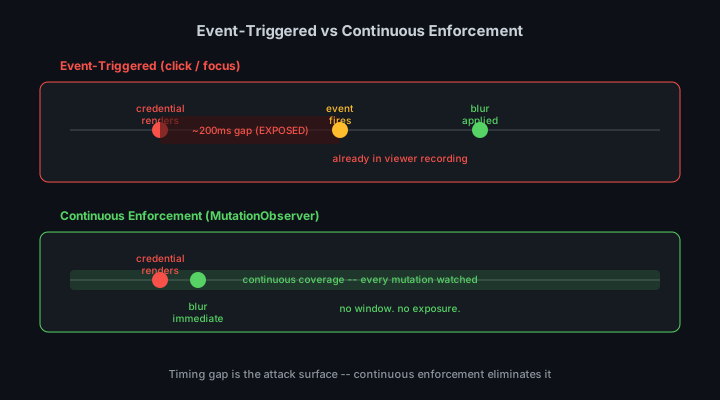
Twitch archives streams as VODs that remain accessible for weeks. The credential that appeared for 200 milliseconds during a live session is preserved in high definition in the VOD for as long as it stays up.
Most developers realize a credential appeared on screen within minutes. The instinct is to rotate the key immediately, which is correct. But the VOD may already be indexed, clipped, and shared. Twitch clips can be created by any viewer during a live stream with a single click. A viewer who spotted the credential can clip that moment before you notice, and that clip lives indefinitely on Twitch regardless of what happens to the original VOD.
Requesting VOD deletion removes the archive but does not remove clips created from it. Clips are separate content items on Twitch. Deleting the VOD does not delete clips made from that VOD. The only way to remove a clip is to find it and delete it specifically, which requires knowing it exists.
Common Credential Exposure Points in Live Coding Streams
The exposure points in a live coding context follow predictable patterns. Understanding them lets you address them systematically rather than hoping they do not come up.
Server Startup Output
Starting a development server in the integrated terminal is a high-risk moment. Many server frameworks print loaded configuration values during startup for debugging purposes. This is useful locally. During a stream, it prints every credential your application uses to the live terminal.
# Dangerous startup output examples
[server] Loaded config: OPENAI_API_KEY=sk-proj-xK9m... DATABASE_URL=postgresql://...
[app] Initializing with API key: sk-live-xxxxx
[debug] Environment: { STRIPE_KEY: "sk_live_51N...", DB_PASS: "s3cr3t" }
Audit your server startup logs before streaming. If your framework prints configuration values, either disable that logging for your streaming environment or switch to using a separate environment with placeholder credentials for stream sessions.
AI Coding Tool Output
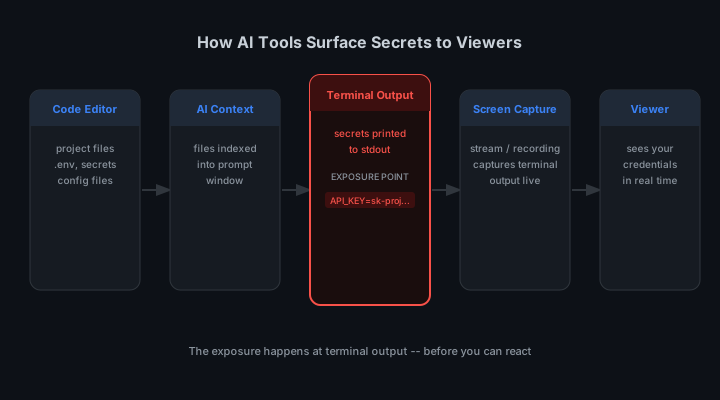
Live coding streams frequently feature AI coding tools like Claude Code or Cursor. These tools index your project files and respond in the terminal. When they reference configuration values to answer your questions, those values appear in the terminal output.
This is especially visible on stream because viewers can watch the AI tool responding in real time. The moment a credential appears in the output, it is on screen for everyone watching and captured in the VOD.
Browser Dashboard Navigation
Many live coding streams include navigating to external dashboards: checking API usage on the OpenAI platform, reviewing Stripe payments, checking deployment status on Vercel or Netlify. These dashboards often display the API keys associated with your account.
The navigation is usually incidental. You go to check one thing and the page you land on happens to have credentials visible in the UI. Because you are in stream mode and focused on your content, you may not notice immediately.
Debugging Sessions
Debugging involves pausing execution and inspecting state. Variable inspection shows current values. If a variable holds a credential at the point where you pause, that value appears in your IDE. Twitch viewers watching the stream see it.
The VS Code debugger inline values feature makes this worse by displaying values directly in the source code as ghost text. The credential is overlaid on your code as you are presenting it.
The Clipping Risk in Detail
Twitch clips are created by pressing a button in the Twitch interface. Any logged-in viewer can create a clip of any moment from the last 60 seconds of a live stream. The clip is immediately public, has its own URL, and is attributed to the viewer who created it, not to you.
A viewer who spots a credential can clip the moment in under two seconds. You have no notification that a clip was created. The clip is now a permanent public artifact that includes a frame-perfect capture of your exposed credential, regardless of what you do afterward.
Disabling clips for your channel prevents this. Go to your Twitch Creator Dashboard, navigate to Settings > Stream, and disable clips. This prevents all viewers from creating clips during your streams. The trade-off is that your audience loses the ability to share highlight moments, which may affect your channel growth. Whether this trade-off is worth it depends on how often you work with credentials on stream.
Stream Delay as a Partial Mitigation
Twitch stream delay adds a buffer between what is happening on your screen and what viewers see. With a long delay, you have time to notice a credential exposure and end the stream before viewers see it.
The practical limit on stream delay is viewer experience. Delays longer than a few seconds make chat interaction feel laggy and reduce the appeal of live interactive streams. A 5-second delay gives you some reaction time but does not fundamentally change the risk model. Credentials appear faster than 5 seconds.
Stream delay combined with automated credential masking is a better combination than either alone. The masking prevents the exposure from reaching the stream in the first place. The delay provides a backup window for manual intervention in cases the masking does not cover.
Dedicated Streaming Environments
The most robust approach for regular developer streamers is to maintain a separate development environment used exclusively for streaming. This environment uses placeholder or test credentials that have no access to production resources.
The streaming environment is structurally identical to your production environment but connected to test accounts and sandbox APIs. When you stream from this environment, any credential that appears on screen is a test credential with no real value. Even if a viewer extracts it, there is nothing to exploit.
Setting this up requires creating test accounts with the services you use, generating test API keys for each, and configuring a separate profile or directory for your streaming environment. The upfront cost is a few hours. The ongoing benefit is streaming without credential anxiety.
# Example streaming environment setup
# .env.stream (committed to repo -- test credentials only)
OPENAI_API_KEY=sk-proj-test-placeholder-key
STRIPE_SECRET_KEY=sk_test_placeholder
DATABASE_URL=postgresql://test:test@localhost/stream_dev

# Load stream environment before going live
export $(cat .env.stream | xargs)
Automated Protection for Live Sessions
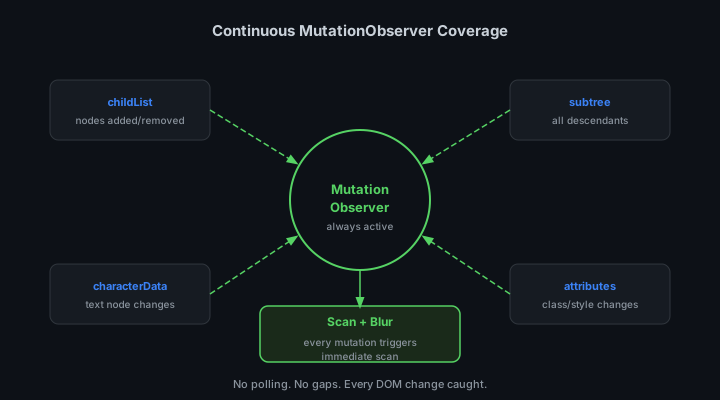
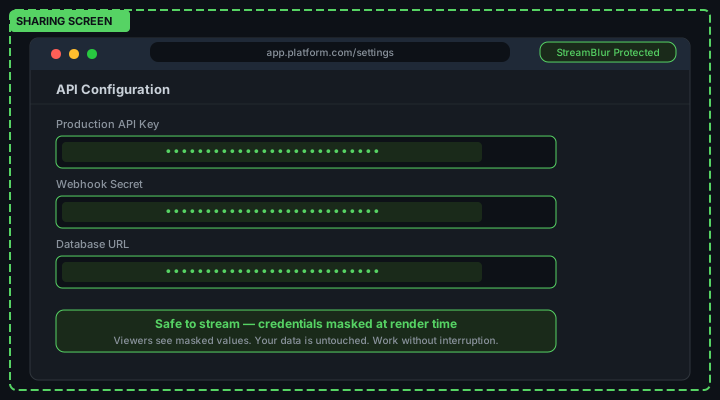
Even with a dedicated streaming environment, automated credential masking provides an additional layer of protection. StreamBlur runs continuously and masks any value matching credential patterns that appears in your browser.
For Twitch-specific workflows, this means coverage for the browser surfaces you use alongside your terminal: service dashboards you navigate to during the stream, documentation pages that display example keys, and any web-based tool that shows configuration values.
The terminal itself requires different handling. StreamBlur covers browser-rendered content. For the system terminal or VS Code integrated terminal, the protection comes from the environment practices described above: test credentials, startup log audits, and CLAUDE.md behavioral rules for AI coding tools.
What to Do When You Expose a Credential Live
Despite preparation, live exposure happens. The right response is fast and systematic.
- undefined
- undefined
- undefined
- undefined
- undefined
- undefined
The key rotation is the critical step. Everything else is secondary to invalidating the exposed credential as fast as possible. Most platforms support key rotation in under a minute. Build the muscle memory to do it immediately when you realize an exposure has happened.
The Twitch Extensions and Panel Credential Risk
Twitch channel panels and extensions are HTML content that renders below the stream player on the channel page. Developers who use custom panels to display project information, GitHub stats, or build status sometimes include API endpoints or token values in the panel HTML for convenience. This content is publicly accessible to anyone who views the page source, not just viewers watching the stream.
The specific risk is that Twitch panel HTML is indexed by search engines and cached by web archive services. A credential embedded in a Twitch panel has a much longer exposure lifetime than a credential that flashes briefly on stream. It remains accessible for as long as the panel exists and for some time after it is removed, due to caching. Review your Twitch channel panels for any embedded credential values and remove them entirely. Channel panel functionality should never depend on client-side credentials.
Twitch PubSub and EventSub During Live Demos
Developers building Twitch integrations often demonstrate their work live on Twitch itself. Testing EventSub webhooks, PubSub subscriptions, or channel point redemptions while streaming requires active API credentials. The development workflow typically involves a terminal where these credentials are set as environment variables, a local server receiving the webhook payloads, and possibly a tool like ngrok creating the public URL.
This combination creates multiple simultaneous credential exposure surfaces. The terminal may display the credentials. The ngrok inspector at localhost:4040 shows the webhook payloads including any credentials in headers or bodies. The local server logs may print the raw requests. Building and testing a Twitch integration live while streaming is a high-risk workflow. The safest approach is to complete the integration work off-stream and demonstrate only the finished product during the live session, with dummy credentials in all visible surfaces. StreamBlur covers browser-visible credential surfaces in this workflow automatically.
The Twitch Developer Dashboard as an Exposure Vector
Many developers who stream on Twitch are also Twitch developers: they build bots, integrations, and extensions using the Twitch API. This creates a specific conflict of interest during live streams. The Twitch Developer Console, accessible at dev.twitch.tv, contains OAuth client IDs and client secrets for applications registered under the streaming account. If a developer navigates to the Developer Console while live, these credentials are visible to the stream audience.
Twitch chat bots are another common exposure vector. Bots typically authenticate with an OAuth token stored in a configuration file. Developers often show their bot configuration during streams as part of demonstrating how the bot works. The configuration file displayed in the editor or terminal may contain the OAuth token in plaintext. Unlike API keys with long rotation cycles, Twitch OAuth tokens may feel less critical because they expire, but an active token captured during a stream can be used immediately for the duration of its validity.
The Twitch API also returns sensitive data in responses that developers commonly display during debugging streams. Subscription data, channel point configurations, and user data responses can contain values that, when combined with other visible information, identify specific users or reveal business-sensitive stream statistics. While these are not credentials in the traditional sense, they represent data that should not be broadcast publicly without consideration.
Building a Streaming-Safe Development Environment for Twitch Work
The most effective approach is a dedicated Twitch application registration for streaming contexts. Create a separate application in the Developer Console specifically for use during live coding sessions. This application has different client credentials from your production Twitch application. When the streaming application's credentials are exposed, you rotate only those credentials without affecting your production integration.
StreamBlur provides real-time masking for Twitch API credential values that appear in browser interfaces, including the Developer Console, API response viewers, and any web-based tool that displays OAuth tokens or client secrets. Combined with separate streaming-specific credentials and post-stream rotation, this gives Twitch developers a practical security posture for live development work.
Stop leaking secrets on your next stream
StreamBlur automatically detects and masks API keys, passwords, and sensitive credentials the moment they appear on screen. No configuration. Works on every tab, every site.
Used by streamers, developers, and SaaS teams. Free tier covers GitHub & terminal. Pro unlocks every site.