
Protecting API Keys During Remote Work: A Guide for Developers on Video Calls
Remote work has made screen sharing a constant part of the developer workflow. Standups, code reviews, debugging sessions, client demos, onboarding calls . all of them involve sharing your screen multiple times per day. Each share is an opportunity to expose an API key to someone who should not have it.
The frequency is the problem. Individual exposure risk on any single share may feel low. But ten shares per day, five days per week, across a year is over 2,500 exposure opportunities. The protection approach needs to match the frequency of the activity.
How Remote Work Changed the Credential Exposure Landscape
- Use separate user profiles for work vs personal
- Enable full-disk encryption (FileVault, BitLocker)
- Use a password manager (1Password, Bitwarden)
- Keep credentials in encrypted vaults, not plain text files
- Use VPN for accessing production systems
In an office environment, sharing your screen meant turning your monitor to show a colleague. The audience was one or two people in your immediate vicinity. The share was informal and brief.
Remote screen sharing is different in every relevant dimension. The audience can be tens of people. The share is captured by the video call platform. Cloud recordings of calls are often distributed to people who were not on the original call. The screen share is higher resolution than a monitor turned sideways, making credential text fully readable. And the share happens constantly . not occasionally when someone needs to look at your screen, but as the default mode for any technical discussion.
This frequency-resolution-recording combination creates a credential exposure risk that is qualitatively different from the pre-remote-work baseline. The tooling and habits appropriate for that baseline are not adequate for the current environment.
Video Call Platform Comparison: What Each One Records
- Share specific windows, not entire screen
- Close terminal windows showing credentials
- Hide notification centers (MacOS, Windows)
- Turn off Slack/email desktop notifications
- Use virtual backgrounds to hide physical workspace
- Enable StreamBlur for automatic credential masking
Zoom
- Zoom: Use "Share Screen → Advanced → Portion of Screen" for precise control
- Teams: Enable "Give control" only when necessary
- Google Meet: Use "A Chrome Tab" instead of "Your Entire Screen"
- All platforms: Disable "Share computer sound" to prevent audio leaks
Zoom cloud recordings are stored on Zoom servers and accessible via a shareable link. Recordings can be shared by the host with anyone. The link can be forwarded. There is no expiration unless the host sets one or the organization's retention policy enforces it.
Zoom also supports local recordings, which are stored on the host's machine. Participants can record locally if the host grants permission. You may not know whether a participant is recording locally.
Zoom's screen share quality scales with your connection and settings. At 1080p, text in your terminal and browser is fully readable.
Google Meet
- Zoom: Use "Share Screen → Advanced → Portion of Screen" for precise control
- Teams: Enable "Give control" only when necessary
- Google Meet: Use "A Chrome Tab" instead of "Your Entire Screen"
- All platforms: Disable "Share computer sound" to prevent audio leaks
Google Meet recordings are saved to Google Drive. The recording is owned by the organizer's Google account and shared with the organizer's organization by default. Depending on organizational settings, Meet recordings may be accessible to anyone in the organization, not just the call participants.
Meet does not support third-party recording apps as cleanly as Zoom, but participants can use screen recording software on their machines independently of Meet. The same caveats about local recording apply.
Microsoft Teams
- Zoom: Use "Share Screen → Advanced → Portion of Screen" for precise control
- Teams: Enable "Give control" only when necessary
- Google Meet: Use "A Chrome Tab" instead of "Your Entire Screen"
- All platforms: Disable "Share computer sound" to prevent audio leaks
Teams recordings are stored in SharePoint or OneDrive depending on your organization's configuration. They are subject to your organization's retention policies. In many enterprise configurations, Teams recordings are automatically shared with all meeting participants and sometimes with the broader channel.
Teams is often used in enterprise environments where compliance requirements mean recordings are retained for longer periods than participants expect. A credential exposed in a Teams recording may be accessible to your organization's compliance team for years.
Discord Video Calls
- Share specific windows, not entire screen
- Close terminal windows showing credentials
- Hide notification centers (MacOS, Windows)
- Turn off Slack/email desktop notifications
- Use virtual backgrounds to hide physical workspace
- Enable StreamBlur for automatic credential masking
Discord does not natively record video calls. Third-party bots and screen recording software can capture them. Developer communities on Discord frequently have technically sophisticated members who run bots capable of screen capture. Do not assume Discord calls are not being recorded simply because the platform does not do it natively.
The Asynchronous Exposure Problem
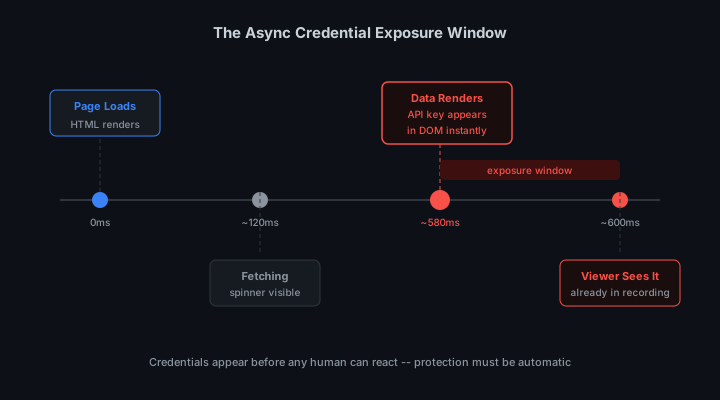
Video call credential exposure has an asynchronous dimension that live streaming does not. On a Twitch stream, exposure happens in real time and the audience is anonymous. On a recorded video call, exposure happens in real time but the recording reaches a different, often larger, audience afterward.
A developer demos an API integration during a team call with five people. The credential appears on screen for 30 seconds. None of the five people on the call intend to misuse it. But the call is recorded and sent to the entire engineering team of 50 people. And the recording link is later included in onboarding documentation. The credential is now accessible to every future employee who goes through onboarding.
This is not a hypothetical attack scenario. It is a routine outcome of standard remote work documentation practices. The credential exposure happens once. The distribution of the recording creates ongoing risk indefinitely.
Building a Credential-Safe Remote Work Setup
- Use separate user profiles for work vs personal
- Enable full-disk encryption (FileVault, BitLocker)
- Use a password manager (1Password, Bitwarden)
- Keep credentials in encrypted vaults, not plain text files
- Use VPN for accessing production systems
Browser Profile Separation
Create a dedicated browser profile for video calls and screen sharing. This profile has no logged-in sessions to credential-displaying dashboards. It has no access to production API keys pages. Use this profile whenever you are on a video call that involves screen sharing.
When a colleague asks you to share your screen during a call, share from this profile. The dashboard they need to see either does not show credentials in this profile, or you navigate to it knowing your credentials are not loaded.
This is not about hiding things from colleagues. It is about reducing the blast radius of an accidental navigation. If you accidentally open the wrong tab while sharing from a clean profile, there is nothing sensitive to expose.
Window-Specific Sharing Over Desktop Sharing
Every video call platform supports sharing a specific application window. Use this feature. Share your code editor window, not your desktop. Share your browser window with the specific tab you need to show, not all of your open tabs.
Window-specific sharing eliminates the exposure surface of every application running in the background. Your terminal with its credential-containing history, your email client with API key rotation notifications, your other browser windows with service dashboards . none of these are visible when you share a specific window.
// Zoom: click Share Screen > Window tab > select specific window
// Google Meet: click Present Now > A window > select specific window
// Teams: click Share Content > Window > select specific window
// Discord: click Share Your Screen > Application window
The Two-Minute Preparation Window
Remote work schedules mean screen shares often start the moment a meeting begins, without preparation time. Build a habit of arriving at meetings two minutes early specifically to prepare for any screen sharing that might occur.
In those two minutes: close sensitive tabs, clear your terminal history, verify the window you plan to share does not have credentials visible, and confirm which browser profile you are in.
This preparation is most useful for unplanned shares. When someone asks you to share during a meeting you did not expect to share in, having already prepared means you can share immediately without the anxiety of not knowing what is visible.
Automated Protection Across All Video Call Platforms
- Share specific windows, not entire screen
- Close terminal windows showing credentials
- Hide notification centers (MacOS, Windows)
- Turn off Slack/email desktop notifications
- Use virtual backgrounds to hide physical workspace
- Enable StreamBlur for automatic credential masking
The challenge with manual preparation is that it depends on anticipating what will be visible. Remote work calls are often spontaneous. A debugging call that starts as a quick question turns into a 45-minute session navigating multiple parts of your development environment. Manual preparation at the start does not cover everything that happens during the session.
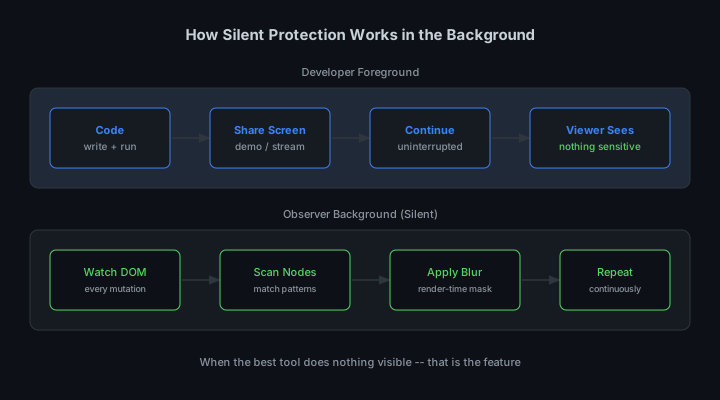
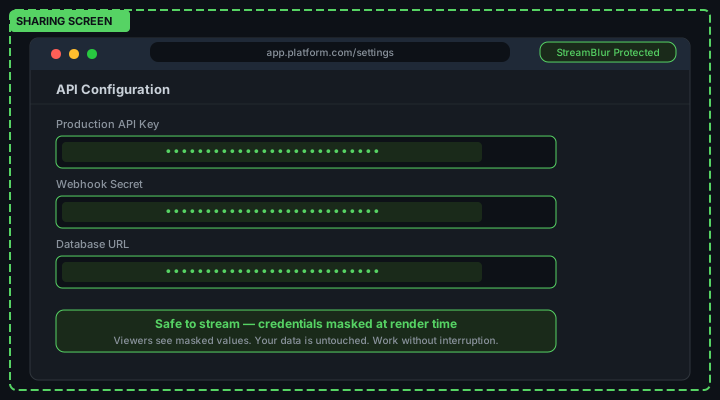
StreamBlur provides continuous protection regardless of what platform you are on or what you navigate to. The browser extension watches the DOM and applies blur to any credential value that renders in a browser surface. This covers the dashboards you navigate to mid-call, the API response you display in a browser, the configuration page you open to answer a question.
The protection is platform-agnostic. It works the same whether you are in a Zoom call, a Google Meet session, or a Teams meeting. The video call platform captures what your screen shows. Your screen shows blurred credential values. The recording contains blurred credential values.
Enterprise Considerations
For developers working in enterprise environments, credential exposure during video calls has additional dimensions beyond immediate security risk.
Many enterprise security policies require incident reporting for credential exposure events. An API key visible in a recorded Teams meeting is potentially a reportable incident under SOC 2 or ISO 27001 compliance frameworks. The exposure occurred, it was recorded, and the recording may be discoverable.
Enterprise environments also involve contractors, vendors, and external collaborators who join video calls. The trust model for these participants is different from internal colleagues. A credential exposed in a call with an external vendor is an exposure to an organization with different security practices and different incentive structures.
Presentation-layer protection like StreamBlur can be deployed organization-wide via Chrome enterprise policies, ensuring that every developer's browser is protected during screen shares regardless of individual habits.
Practical Habit Summary
The Persistent Recording Risk in Remote Work
- Use separate user profiles for work vs personal
- Enable full-disk encryption (FileVault, BitLocker)
- Use a password manager (1Password, Bitwarden)
- Keep credentials in encrypted vaults, not plain text files
- Use VPN for accessing production systems
Remote work video calls introduce a recording risk that in-person collaboration does not have. Most video conferencing platforms support recording, and many organizations enable automatic recording for compliance or documentation purposes. A screen share during a recorded call creates a permanent record of everything that appeared on screen during the share. Unlike live streams where VOD deletion is optional, corporate meeting recordings are often retained in organizational archives for months or years.
The implication for credential security is that a single screen share exposure can persist in your organization's video archive indefinitely. Discovering the exposure weeks later does not help because the recording has already been indexed, transcribed, and stored. For developers working in regulated industries or enterprise environments with strict data retention policies, treating every screen share as recorded, even if recording was not explicitly enabled, is the prudent assumption.
Notification and Popup Management for Video Calls
- Share specific windows, not entire screen
- Close terminal windows showing credentials
- Hide notification centers (MacOS, Windows)
- Turn off Slack/email desktop notifications
- Use virtual backgrounds to hide physical workspace
- Enable StreamBlur for automatic credential masking
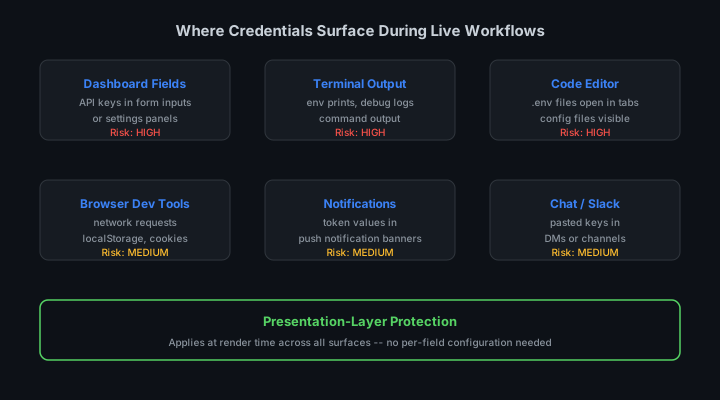
Desktop notification systems designed to surface timely information become credential exposure vectors during video calls. Password manager notifications that display a portion of a filled credential, Slack or email previews that include API keys in message text, and calendar reminders that show meeting details all render as overlays on the screen during a share. These popups appear outside the application being shared but within the full screen capture frame used by most video conferencing software.
The reliable control is enabling Do Not Disturb or Focus mode on the operating system before joining any call where screen sharing is planned. On macOS, Focus mode suppresses all notifications system-wide. On Windows, Focus Assist provides similar functionality. On Linux, notification management varies by desktop environment, but all major environments support temporary suppression. Enabling this mode before every video call creates a consistent boundary that prevents notification-based credential leaks regardless of which applications might send notifications during the call.
Second Monitor and Extended Desktop Risks
Developers using extended desktop configurations with multiple monitors face a unique exposure risk during video calls. Some video conferencing platforms capture only the primary monitor by default, but others capture the entire extended desktop, including all connected monitors. A developer who assumes that their second monitor is not visible to call participants may have credential-containing windows open on that monitor throughout the call.
The behavior varies by platform and OS. Zoom, Google Meet, and Microsoft Teams each handle multi-monitor capture differently, and the default settings change periodically with software updates. The only reliable approach is verifying which monitors are captured before starting the screen share, using the preview feature that most platforms provide. StreamBlur runs in the browser and protects credentials visible in any monitor running a browser-based tool, but terminal windows and native applications on a second monitor are outside its scope.
The Spontaneous Screen Share Problem
The highest-risk moment for credential exposure during remote work is not the planned demo or the scheduled presentation. It is the spontaneous screen share: "Can you show me what you're seeing?" During a debugging session with a colleague, a quick code review call, or a troubleshooting conversation with support, screen sharing starts immediately and without preparation. There is no pre-stream checklist, no credential review, and no credential swap. Whatever is on your screen when the share starts is what your colleague sees.
Spontaneous screen shares are the primary scenario where continuous, always-on credential masking provides value that manual procedures cannot. You cannot reliably prepare for a screen share request you did not anticipate. But a browser extension that continuously masks credential values in browser-rendered content does not require anticipation. It is already running when the spontaneous share starts.
The spontaneous share risk is compounded in home office environments where the developer's work and personal contexts are less separated than in a traditional office. A home office screen might have browser tabs open to personal financial accounts, banking dashboards, or personal email alongside development work. A spontaneous screen share in this environment exposes a larger context than a corporate office screen share would.
Practical Credential Protection for Remote Development Work
The most impactful single habit change for remote development credential safety is using virtual desktops or workspace separation to isolate credential-bearing applications from general work surfaces. Maintain a separate desktop workspace for your development environment, with credentials accessible there, and a separate workspace for communication tools, documentation, and non-credential work. When a screen share request comes in, you can quickly switch to sharing only the non-credential workspace.
StreamBlur provides the browser-side credential masking layer that works without requiring workspace switching for every spontaneous share. Combined with the virtual desktop discipline for non-browser credential surfaces, it creates a practical remote work security posture that does not require constant active management. The goal is credential safety as a default state rather than as an active decision required before every interaction.
Stop leaking secrets on your next stream
StreamBlur automatically detects and masks API keys, passwords, and sensitive credentials the moment they appear on screen. No configuration. Works on every tab, every site.
Used by streamers, developers, and SaaS teams. Free tier covers GitHub & terminal. Pro unlocks every site.