
How Postman Exposes API Keys During Screen Shares and How to Demo APIs Safely
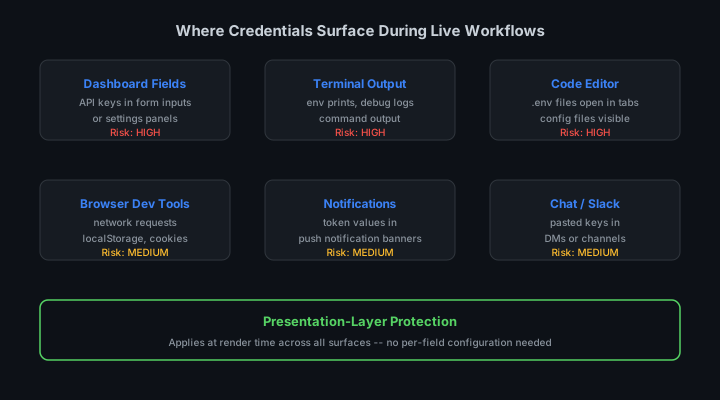
Postman is where API credentials live in plain sight. The Authorization tab shows your API key. The Headers tab shows your Bearer token. The Environment panel shows every variable you have configured. When you share your screen to demonstrate an API integration or walk someone through a request, all of these are visible.
Unlike a terminal command that scrolls past, Postman credential exposure is persistent. The values sit in the UI, fully visible, for the entire duration of your demo. If you are showing how to make an API call, the credential that makes the call is on screen the whole time.
The Authorization Tab
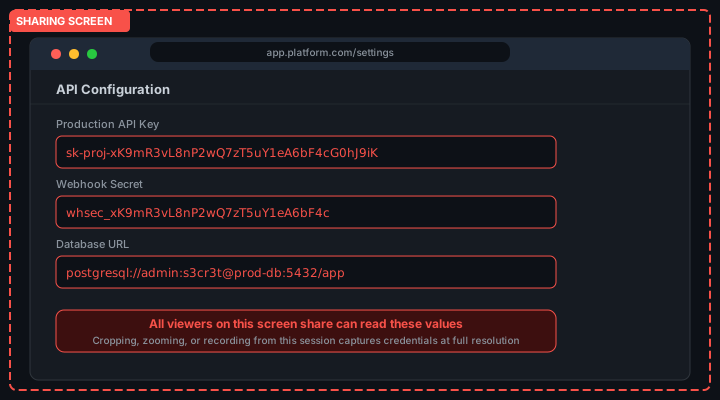
The most direct exposure in Postman is the Authorization tab. This tab shows the authentication method for a request and its current value. For Bearer token authentication, the full token value is displayed in a text field. For API Key authentication, the key value appears in the input field. For Basic Auth, the username and password are visible.
When you click on any request in a Postman collection, the Authorization tab loads with the current credentials. If you have inherited auth from a collection or environment, Postman shows the resolved value . the actual credential, not a reference.
During a demo, you might click through multiple requests to show different API endpoints. Each click loads that request's authorization configuration. The credentials are on screen for every request you open.
Environment Variables and Collection Variables
Postman uses environment variables to store reusable values, including credentials. A well-organized Postman workspace uses an environment variable like {{api_key}} in requests and stores the actual key value in the environment.
This looks safer than hardcoding the key in requests. It is not safer during a screen share, because the Postman Environments panel shows every variable and its current value. When you open the environment to show how the workspace is configured, the key value is visible.
// What the Environments panel shows
Variable: api_key
Initial Value: sk-proj-xK9mR3vL8nP2wQ7zT5uY1eA6bF4cG0hJ9iK
Current Value: sk-proj-xK9mR3vL8nP2wQ7zT5uY1eA6bF4cG0hJ9iK

// The {{api_key}} reference in requests looks safe
// The environments panel reveals the actual value
Postman distinguishes between Initial Value (synced to Postman servers and visible to collaborators) and Current Value (local only). Many developers put their real credentials in the Current Value and leave the Initial Value blank or as a placeholder. This is better practice for collaboration security but does not help during screen shares . the Current Value is visible in the Environments panel.
The Console and Request History
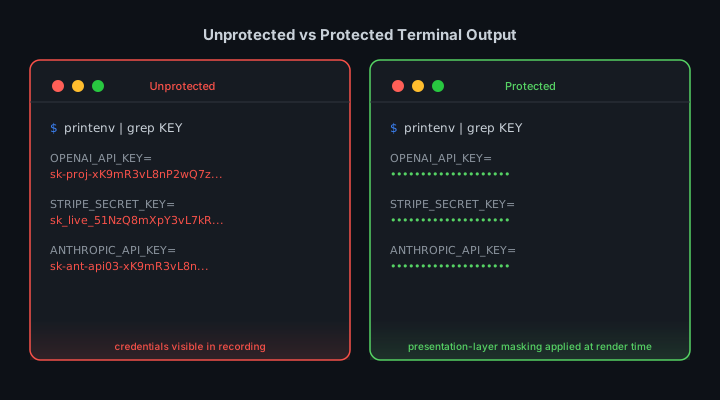
The Postman Console logs every request sent, including the full request headers. Authorization headers containing Bearer tokens or API keys appear in the console log for every request. When you open the Console panel to debug a request during a demo, the credentials from previous requests are visible in the log.
The console persists across requests. Every API call you made before starting your screen share may still be visible in the console log. Opening the console to show request/response details also shows the authorization headers from the entire session.
// Postman Console output -- shows full authorization header
GET https://api.openai.com/v1/models
Request Headers:
  Authorization: Bearer sk-proj-xK9mR3vL8nP2wQ7zT5uY1eA6bF4cG0hJ9iK
  Content-Type: application/json
  User-Agent: PostmanRuntime/7.32.3
Pre-Request Scripts and Test Scripts
Postman allows JavaScript in pre-request and test scripts. These scripts can set variable values, including credentials. When you open the Scripts tab to show how your collection is set up, any script that constructs or logs a credential value is visible.
A common pattern is building an authorization header in a pre-request script from component parts stored as environment variables. The script that concatenates those parts may log the result for debugging. That log entry, visible in the Postman Console, contains the assembled credential.
// Pre-request script that builds and logs auth header
const apiKey = pm.environment.get("api_key");
const timestamp = Date.now();
const signature = computeHmac(apiKey, timestamp);
const authHeader = `${apiKey}:${signature}:${timestamp}`;
pm.request.headers.add({ key: "X-Auth", value: authHeader });
console.log("Auth header:", authHeader); // logs full credential
Postman Web vs Desktop App
Postman has both a desktop application and a web version. The web version runs in the browser. The desktop app is an Electron application.
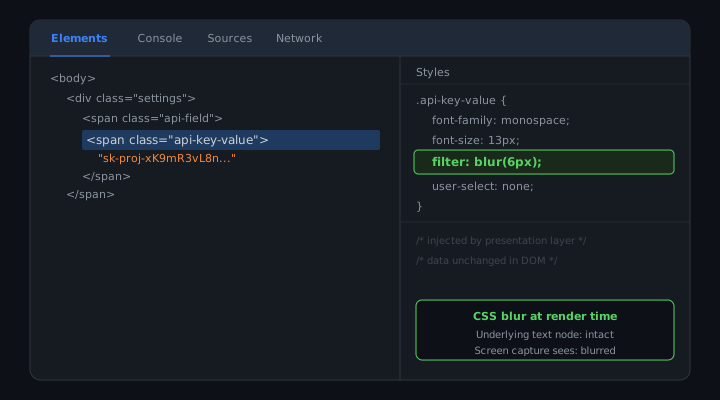
For screen sharing purposes, the key difference is that the web version is covered by browser-based credential masking tools like StreamBlur. The Postman web app renders credential values as DOM text nodes. A MutationObserver running in the browser extension can catch these values and apply blur.
The desktop app runs outside the browser context. Browser extensions cannot observe its DOM. For the desktop app, protection requires the environment-level approaches described below.
Safe Postman Demo Practices
Use a Demo Workspace with Test Credentials
Create a separate Postman workspace or collection specifically for demos. This workspace uses test API keys connected to sandbox accounts. Configure environment variables with placeholder values that are structurally similar to real credentials but have no actual access.
When you demo from this workspace, everything visible in the UI . authorization headers, environment variables, console output . contains non-sensitive values. Viewers can learn from watching the workflow without extracting credentials that work in production.
// Demo environment variables -- safe to show
api_key: sk-proj-demo-placeholder-value-not-real
base_url: https://api.openai.com
model: gpt-4

// Real environment (never screen share)
api_key: sk-proj-xK9mR3vL8nP2wQ7zT5uY1eA...
Mask Credentials Before Opening the Environments Panel
Before opening the Environments panel during a screen share, set the Current Value of any credential variable to a placeholder. The request will fail without the real credential, but if your demo does not require making live API calls, showing the structure without the value is often sufficient.
Alternatively, use Postman's Secret variable type, which masks the value in the UI. Secret variables display as asterisks in the Environments panel. If your credentials are configured as Secret variables, opening the panel does not expose them.
// Setting a variable as Secret type in Postman
// Environment panel shows: api_key = ****
// Value is masked in UI but still used in requests
Clear the Console Before Sharing
Before starting a screen share with Postman open, clear the Postman Console. This removes the history of previous requests and their authorization headers from the console log. If you need to open the console during the demo, you are starting from a clean state.
Use Postman Web with StreamBlur for Live Demos
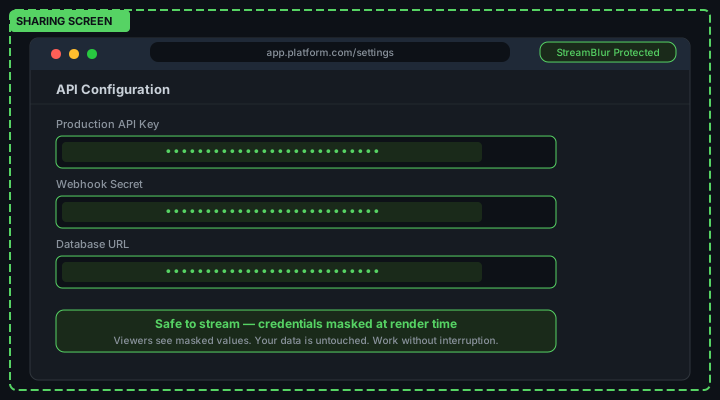
If your demo requires showing live API responses with real credentials, use Postman's web version in a browser where StreamBlur is installed. The extension monitors DOM mutations and applies blur to credential patterns as they render. The Authorization tab and Environment panel values are masked before the screen capture sees them.
This approach lets you run real API calls during demos without manually managing which panels are visible. The protection is automatic and covers the async cases where credential values appear after navigation.
Postman Collections and Shared Workspaces
Postman collections are shareable bundles of API requests that include all request configuration, headers, and authentication settings. When a developer shares a Postman collection with a colleague or publishes it publicly to demonstrate an API, the collection file may contain real API keys embedded in the request configuration. Postman collections are JSON files that can be exported and imported. If an API key is set in the Authorization tab of a request in the collection, that key is included in the exported JSON.
Public Postman workspaces, which allow publishing collections for community use, are a particularly acute source of credential exposure. A developer who publishes a collection to demonstrate how to use their API may include their own API key in the requests for convenience. That key becomes publicly accessible to anyone who imports the collection. Postman's environment variable system exists precisely to separate credential values from request definitions, but it requires conscious use. Collections intended for sharing should use environment variable placeholders for all credentials, with documentation instructing users to set their own values.
The Postman Console and Request History
Postman's console, accessible via the bottom panel or the View menu, logs all HTTP requests and responses sent through the application. This includes full request headers, request bodies, and response bodies. If a request includes an API key in a header or body parameter, that key appears in the console log in plaintext. The console log persists across Postman sessions and is not cleared automatically.
A developer who sends authenticated API requests during a live demo may have dozens or hundreds of previous requests in the console log from earlier sessions, some of which may contain credentials. Opening the Postman console during a screen share exposes the entire log history to the audience. The console is useful for debugging, but it is a comprehensive credential record. Before any screen share involving Postman, clear the console log via the trash icon in the console panel. This takes two clicks and eliminates the risk of historical credential exposure.
Environment Files and Local Storage
Postman stores environment variable values in local application storage on the machine where Postman is running. These values are not encrypted at rest in Postman's free tier. A developer who stores production API keys in a Postman environment is storing those keys in plaintext on disk. The file location varies by operating system, but the content is accessible to any process running with the same user privileges.
More relevant for screen sharing, Postman environments can be exported as JSON files. A developer who exports an environment to share it with a colleague or back it up before reinstalling Postman creates a plaintext file containing all environment variable values. If that file is opened in an editor during a screen share, all stored credentials are visible. The safer pattern is using Postman's Secret variable type, introduced in Postman v10, which masks values in the UI and excludes them from environment exports. Migrating all credential-type variables to Secret variables prevents accidental exposure through exports and UI screenshots.
Desktop vs. Web Version Differences
Postman is available as both a desktop application and a web application. The web version runs entirely in the browser and stores all data in Postman's cloud. The desktop application stores data locally but can sync to the cloud if the user is signed in. For screen sharing purposes, the relevant difference is that the web version's UI is part of the browser DOM, which means StreamBlur can detect and blur credentials rendered in the Postman web interface. The desktop application is a native Electron app, and its UI is not accessible to browser extensions.
Developers who prefer the desktop application for daily work but want automated credential protection during screen shares can switch to the web version for demo sessions. Postman workspaces sync between desktop and web versions, so the same collections and environments are available in both. Using the web version during a live demo activates browser-layer protection while preserving the developer's normal workflow in the desktop application for non-demo work.
The Collection Sharing Problem
Postman collections are JSON files that contain API request definitions, including authentication configurations. When you share a collection with a colleague or export it for a demo, any credentials embedded directly in the collection are included in the export. Request-level authorization configured with literal API key values, rather than environment variable references, travels with the collection to every recipient.
The most common form of this problem occurs during live demos where a presenter exports a collection "so the audience can follow along." If that collection was configured with real API keys at the request level rather than environment variable references, every audience member who downloads the collection has access to those credentials in the exported JSON file. This exposure is invisible during the demo itself: the presenter shares a link, the audience downloads a file, and the credential exposure happens off-screen.
The reliable mitigation is to use Postman environments for all credential storage and reference credentials in requests using the {{VARIABLE}} syntax rather than literal values. Exported collections that use environment variable references do not contain credential values. Recipients must configure their own environment with their own credentials to use the collection. This is also better API development practice because it keeps collections portable and shareable without credential sharing.
Environment Variable Display in Postman
Postman's environment panel shows the current values of all environment variables including credentials. The panel has a toggle to show or hide variable values, but the default state in some Postman versions shows values in plain text. During a screen sharing session, if you navigate to the environment panel to demonstrate configuration, the credentials in the panel are visible to viewers.
Postman's "Current Value" column is especially risky. Collections can have both "Initial Value" (shared with team members in Postman workspace sync) and "Current Value" (local only). Many developers store real credentials in the Current Value column because it is not synced. The visual layout shows both columns adjacent to each other, and it is easy to accidentally expose the Current Value column when showing the environment configuration during a demo.
Console Tab and Request History
Postman's console tab shows the raw HTTP requests and responses for API calls made through the client. This includes the full Authorization header, query parameters containing API keys, and any other credential material included in requests. The console tab is useful for debugging, but opening it during a screen sharing session exposes every credential sent in every recent request.
The request history sidebar shows a timestamp-sorted list of recent requests with their URLs. URLs that include API keys as query parameters, a common but insecure authentication pattern, expose those keys in the history list. Even without opening a specific request, the URL preview in the history list may show enough of the key to be readable. Clean your request history before a demo session by deleting recent requests that contain credential material in their URLs.
StreamBlur applies credential masking to Postman when it runs in the browser (Postman Web at web.postman.co). For the Postman desktop application, the browser-level masking does not apply. The desktop application credential protection requires the workflow discipline of environment variable references, console tab hygiene, and history cleanup before live sessions.
Stop leaking secrets on your next stream
StreamBlur automatically detects and masks API keys, passwords, and sensitive credentials the moment they appear on screen. No configuration. Works on every tab, every site.
Used by streamers, developers, and SaaS teams. Free tier covers GitHub & terminal. Pro unlocks every site.