
How Jupyter Notebooks Expose API Keys During Screen Sharing (And How to Prevent It)
Jupyter notebooks are the standard working environment for data scientists, ML engineers, and researchers. They are also the environment where API key exposure is most likely to happen silently and persist longest.
Unlike a terminal session that scrolls and clears, a notebook retains its outputs permanently. A cell that printed an API key three days ago still shows that value when you scroll back to it. If that notebook is open when you share your screen, the value is visible. If you share the notebook file itself, the value is in the JSON.
Cell Output: The Persistent Credential Record
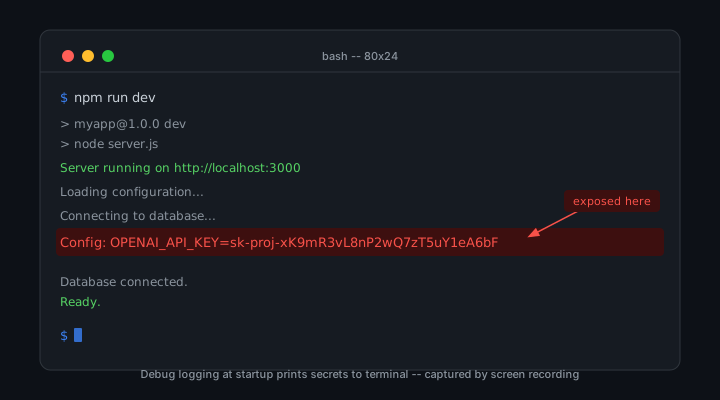
Every cell execution in Jupyter stores its output in the notebook. This includes print statements, variable displays, and the automatic output of the last expression in a cell. If any of these outputs include a credential value, that value is stored in the notebook and displayed every time the notebook is opened.
The most common way this happens is through exploratory code. A developer loading credentials from an environment file to test a connection writes a cell to verify the values loaded correctly:
import os
print(os.environ.get("OPENAI_API_KEY"))  # verify it loaded
# Output: sk-proj-xK9mR3vL8nP2wQ7zT5uY1eA6bF4cG0hJ9iK
This cell was written for debugging, run once, verified to work, and then left in the notebook with its output intact. Three weeks later, the notebook is opened during a screen share for a demo. The cell is still there. The output is still visible. The credential is on screen.
Notebooks make this pattern easy to create because cell outputs are retained by default and the notebook is designed to show the history of your analysis. What is a feature for analytical reproducibility is a liability for credential security.
Variable Inspection and Inline Display
Jupyter has several features that display variable values inline in the notebook interface. Any of these can surface a credential.
Last Expression Output
In Jupyter, the last expression in a cell is automatically displayed as the cell output if it has a return value. This means that a cell ending with a variable name displays the value of that variable:
# This cell displays the value of api_key as its output
api_key = os.environ.get("OPENAI_API_KEY")
api_key  # last expression -- automatically displayed
This is a standard Jupyter pattern for displaying results without explicit print statements. It also means that any cell where a credential variable is the last expression will display that credential in the cell output.
Rich Display Objects
Many Python objects have rich display representations in Jupyter. A dictionary containing credentials, displayed with the standard dict.__repr__, shows all key-value pairs including credential values:
config = {
    "api_key": os.environ.get("OPENAI_API_KEY"),
    "model": "gpt-4",
    "temperature": 0.7
}
config  # displays entire dict including api_key value
Libraries that display configuration objects helpfully as rich HTML in Jupyter can expose credentials through the same mechanism. An ML training configuration displayed as a formatted table may include API endpoint credentials in one of its fields.
The Variable Inspector Extension
The Jupyter variable inspector extension, available for both classic Jupyter and JupyterLab, displays a panel showing all current in-memory variables and their values. When this panel is open and a credential is loaded into a variable, the value is displayed in the panel.
The variable inspector is a useful debugging tool. During a screen share with the panel open, it is a credential broadcast panel. Every in-memory value is visible to viewers as long as the panel is displayed.
The Notebook File Itself
Jupyter notebook files (.ipynb) are JSON documents. The JSON includes cell inputs, cell outputs, and metadata. Any credential that appeared in a cell output is stored in plain text in the notebook file.
This creates a compounding risk. The credential appears on screen when the notebook is open. The credential is stored in the file. If the file is shared, emailed, uploaded to a repository, or submitted as part of a code review, the credential travels with it.
# What .ipynb JSON looks like for an output cell
{
  "cell_type": "code",
  "outputs": [
    {
      "output_type": "stream",
      "text": [
        "sk-proj-xK9mR3vL8nP2wQ7zT5uY1eA6bF4cG0hJ9iK\n"
      ]
    }
  ]
}
Running git log on a repository that has had notebook files committed at any point can surface historical credential values that were in cell outputs. GitHub's secret scanning catches some of these, but only for common credential formats and only after they have been committed.
Kernel State and Variable Persistence
Jupyter kernels maintain in-memory state across cell executions. A credential loaded in cell 3 is still in memory when you are running cell 47. If you display any object that includes the credential as a field during cell 47, the value is exposed.
This persistence is fundamental to how notebooks work. The state accumulation is what makes them useful for iterative analysis. It also means that a credential loaded at the start of a session is potentially exposable by any cell run during that session.
Variable shadowing adds another risk. A cell that assigns a new value to a variable named key may inadvertently display the old value if the previous assignment was a credential and the new assignment triggers a rich display of the variable history.
Safe Credential Handling Patterns for Notebooks
Addressing the notebook credential problem requires both technical practices and workflow habits.
Load Credentials Without Displaying Them
Load credentials at the start of the notebook in a cell that does not produce output. End the cell with a confirmation statement rather than the variable value:
import os
from dotenv import load_dotenv

load_dotenv()
api_key = os.environ.get("OPENAI_API_KEY")

# Confirm loaded without displaying value
assert api_key is not None, "API key not loaded"
print("API key loaded successfully")  # not: print(api_key)
Never use a credential variable as the last expression in a cell. Append a confirmation string or use a verification function that returns a boolean rather than the value.
Clear Outputs Before Sharing
Before any screen share, presentation, or file sharing, run Kernel > Restart and Clear Output from the Jupyter menu. This clears all cell outputs and resets kernel state. The notebook displays only cell inputs, with no stored output values.
After restarting and clearing, scroll through the notebook to verify no credential values appear in any cell input. Credentials may be hardcoded in cell inputs as well as outputs. A cell with api_key = "sk-proj-xK9mR..." hardcoded in the input is an exposure regardless of the output.
# Run this in a cell to clear sensitive variables from kernel state
# before a screen share
del api_key
del db_password
del secret_key
import gc; gc.collect()
print("Sensitive variables cleared")
Use jupyter-contrib-nbextensions to Mask Cells
The jupyter-contrib-nbextensions package includes an extension that can mark specific cells as hidden or collapsed. Cells containing credential loading code can be marked as collapsed so their code is not visible in the notebook view. The cell still executes but is not displayed.
Environment Variable Isolation
Use separate environment files for notebook sessions used in presentations. A .env.notebook file containing placeholder credentials ensures that any cell output during a demo shows non-sensitive values. Load this file specifically for screen sharing sessions:
# .env.notebook -- placeholder credentials for demos
OPENAI_API_KEY=sk-proj-demo-placeholder-not-real
ANTHROPIC_API_KEY=sk-ant-demo-placeholder
STRIPE_SECRET_KEY=sk_test_demo_placeholder

# In notebook:
from dotenv import load_dotenv
load_dotenv(".env.notebook")
Practical Ways to Reduce Credential Exposure in Notebooks
Clear all cell outputs before any screen share or presentation Avoid printing or displaying credential variables directly Use placeholder or scoped credentials for demos Separate demo environments from production credentials Restart kernels and clear in-memory variables before going live
These practices reduce the likelihood of exposure, but they rely on consistent manual discipline and can still fail during live workflows.
Presentation-Layer Protection for JupyterLab
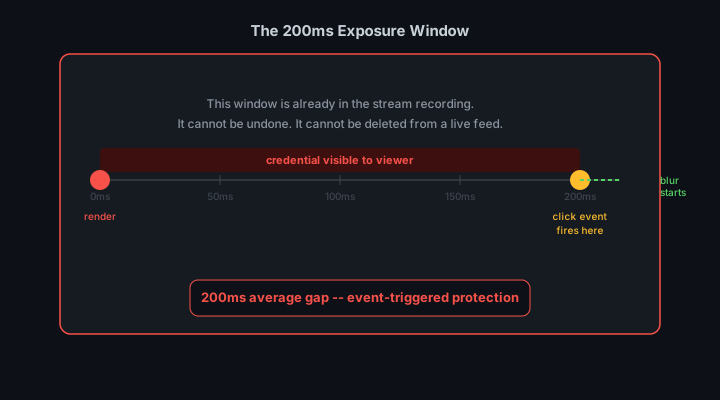
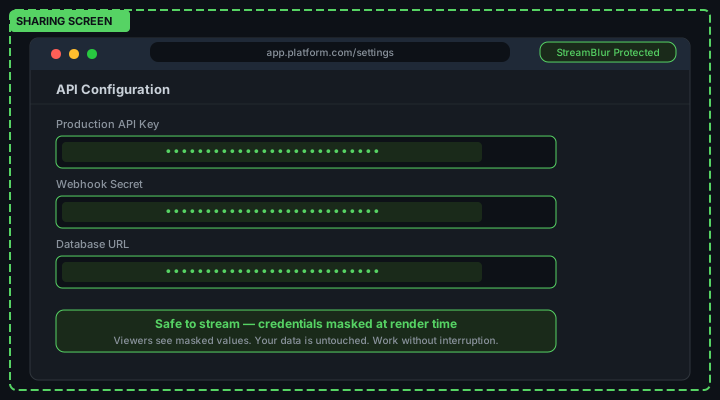
One approach to handling credential exposure in notebook environments is to monitor what appears in the interface in real time and mask sensitive values before they become visible on screen.
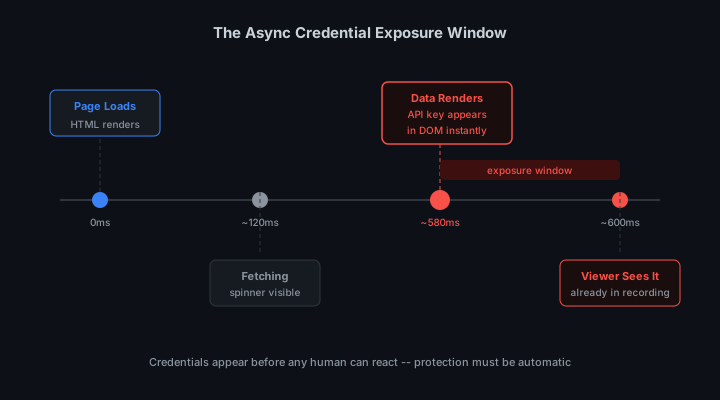
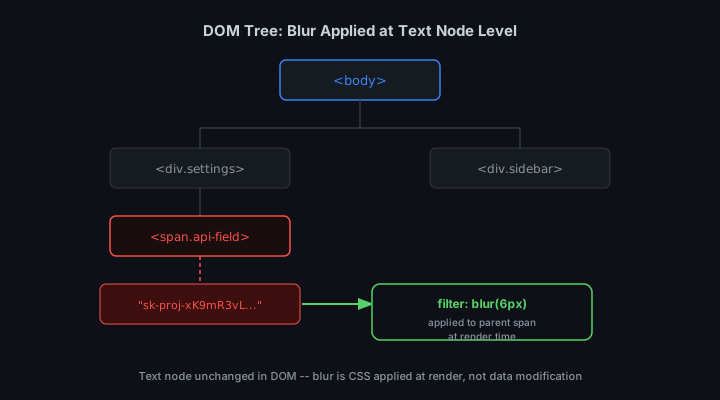
JupyterLab runs in the browser, where cell outputs are rendered as DOM elements. When a cell executes, its output is inserted into the DOM dynamically. This creates an opportunity to observe newly rendered elements, scan for credential patterns, and mask them before they are visible during a live demo or screen share.
This type of approach focuses on the presentation layer rather than the codebase or environment configuration. It does not require modifying the notebook itself or changing how credentials are loaded. Instead, it provides a safeguard for cases where sensitive values appear unexpectedly in outputs.
Tools built for presentation-layer protection run locally in the browser and mask credential patterns automatically as content is rendered. This helps cover the most common exposure scenario: a value appearing in output during a live session before the developer has time to react.
Classic Jupyter Notebook environments follow a similar browser-based rendering model and can be handled using the same approach.
What to Do If a Credential Appeared in a Notebook
1. Rotate the exposed credential immediately
2. Clear all cell outputs from the notebook
3. Check version control history for the notebook file
4. Review any shared notebook links (Colab, JupyterHub)
5. Strip outputs before committing with nbstripout
6. Use environment variables or secrets managers going forward
JupyterLab and the Split Panel Problem
JupyterLab supports a split panel layout where multiple notebooks can be open side by side. Developers who use this layout for efficiency may have a notebook containing setup cells with credential assignments visible in one panel while working in another panel. The setup notebook is in the background but fully visible in the stream capture frame.
This split-panel credential exposure is easy to miss because the developer's focus is on the active panel. The background panel content is peripheral visually, but stream capture treats all visible content equally. A viewer paying attention to the background panel during a live stream sees the same content as if that panel were in the foreground. Before streaming in JupyterLab with split panels, verify that no credential-containing cells are visible in any panel, not just the active one.
Google Colab and Cloud Notebook Credential Handling
Google Colab is a popular hosted Jupyter environment that introduces additional credential exposure surfaces beyond local notebook instances. Colab notebooks can be shared publicly via link, which means any credential stored in a cell output or variable is accessible to anyone with the link. Colab's "Secrets" feature, introduced to address this problem, stores credentials in a protected store and injects them as environment variables, keeping them out of cell outputs.
Developers demonstrating AI or data science workflows in Colab should use the Secrets feature exclusively for API key management. Setting credentials directly in cells, even in cells that are later deleted, leaves the values in the notebook's revision history, which is stored by Google and accessible to anyone with edit access to the notebook. StreamBlur runs in the browser and covers credential patterns rendered in Colab's cell output area, providing a safety layer for cases where a credential appears in output unexpectedly during a live demo.
The combination of notebook-specific practices and presentation-layer safeguards covers the most common Jupyter credential exposure scenarios. Dotenv loading patterns keep credentials out of cell outputs. Cleared outputs before streaming prevent historical exposures. The Secrets feature in hosted environments keeps credentials out of shared notebook files. And real-time monitoring at the interface level helps catch credentials that appear unexpectedly during live demos.
Cell Output Persistence and Credential Retention
Jupyter notebooks store cell outputs directly in the notebook file. When a cell that prints a credential value is executed, the output, including the credential, is written to the .ipynb file's JSON structure. This means the credential persists in the notebook file even after the session ends, the browser is closed, or the kernel is restarted. Any subsequent viewer of the notebook file, or any version control system that stores the notebook, has access to that credential value in the saved output.
This creates a specific risk for notebook-based presentations: the developer runs the notebook before the presentation to verify everything works, credential values appear in cell outputs, and those outputs are saved to the file. The notebook is then shared with the audience as a download link or pushed to a public repository. Every person who downloads the notebook can read the credential values from the saved cell outputs without the notebook ever needing to be re-executed.
The reliable mitigation is to clear all cell outputs before sharing or presenting a notebook. Jupyter provides a kernel menu option to clear all outputs, and JupyterLab provides a similar option. For notebooks stored in Git, a pre-commit hook or nbstripout package can automatically strip cell outputs before commit, preventing credential-containing outputs from reaching the repository. nbstripout is the standard tool for this purpose.
Sharing Notebooks After the Demo
Notebook sharing after a live demo session requires a systematic credential audit before the file is distributed. The audit must cover not just the obvious credential-printing cells but also the less obvious cases: error output cells that printed credential material as part of an exception traceback, cells that used print(config) or print(os.environ) to debug configuration, and cells that displayed API responses containing token values in the JSON output.
The safest approach is to treat every cell output in a demo notebook as potentially containing credential material and clear all outputs before sharing. Re-execute only the specific cells needed for the shared version of the notebook, using mock credentials or read-only API keys scoped to the demonstration context. This ensures that the notebook viewers can re-run the demonstration without accessing the presenter's real credentials.
For online-hosted notebooks using JupyterHub or Google Colab, shared links to notebooks may include the session state including cell outputs. Review the sharing settings for any notebook that was used in a live session before making the share link public. Tools built for presentation-layer protection can monitor notebook output in real time and mask credential patterns as they appear during live sessions. This adds a safety layer without requiring changes to how the notebook itself is written or executed.
Stop leaking secrets on your next stream
StreamBlur automatically detects and masks API keys, passwords, and sensitive credentials the moment they appear on screen. No configuration. Works on every tab, every site.
Used by streamers, developers, and SaaS teams. Free tier covers GitHub & terminal. Pro unlocks every site.