
How Docker Compose Demos Expose Secrets and Environment Variables on Screen
Docker Compose is the standard tool for defining and running multi-container applications. It is also a standard part of developer demos and technical presentations. When you show someone how your stack runs locally, you show them your docker-compose.yml. When something goes wrong during the demo, you run docker exec to inspect container state. Both of these actions can expose every secret your application uses.
The problem is structural. Docker Compose is designed to make environment configuration explicit and reproducible. That explicitness is exactly what creates the exposure risk during demos.
The docker-compose.yml File
The docker-compose.yml file defines your services, their images, their volumes, and their environment variables. Environment variables are often defined inline in the Compose file, either as literal values or referencing a .env file.
When you open docker-compose.yml in an editor during a screen share, every environment variable definition is visible. If the file uses literal values, the secrets are directly in the file. If it references variables from a .env file, the variable names reveal your secret architecture even if the values are not shown.
# docker-compose.yml -- what viewers see
services:
  api:
    image: myapp:latest
    environment:
      - OPENAI_API_KEY=sk-proj-xK9mR3vL8nP2wQ7zT5uY1eA...  # exposed
      - STRIPE_SECRET_KEY=sk_live_51NzQ8mXpY3vL7kR9...      # exposed
      - DATABASE_URL=postgresql://admin:s3cr3t@db:5432/app   # exposed
Even when using variable interpolation from a .env file, the Compose file reveals which secrets your application requires:
# Still reveals secret names and architecture
services:
  api:
    environment:
      - OPENAI_API_KEY=${OPENAI_API_KEY}
      - STRIPE_SECRET_KEY=${STRIPE_SECRET_KEY}
      - DATABASE_URL=${DATABASE_URL}
During a demo, showing the Compose file to explain your architecture is routine. The file is part of the story you are telling. But it is also a map of every credential your application depends on.
Container Logs and Startup Output
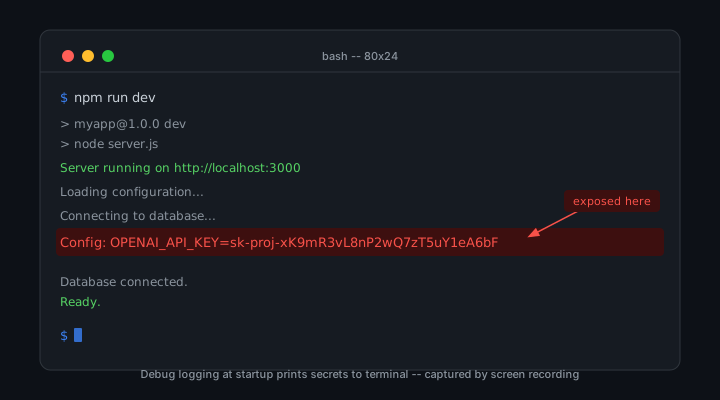
Running docker compose up in a terminal during a demo shows container startup logs in real time. Application containers frequently log their configuration during startup for operational visibility. What is useful in a production monitoring context exposes your credentials during a demo.
# Common startup log patterns that expose credentials
$ docker compose up
Starting db ... done
Starting api ... done
Attaching to api, db
api_1  | Loading config: OPENAI_API_KEY=sk-proj-xK9m...
api_1  | Database connected: postgresql://admin:s3cr3t@db
api_1  | Stripe initialized with key: sk_live_51Nz...
db_1   | PostgreSQL init: user=admin password=s3cr3t
You cannot control what application containers log at startup unless you control the application code. Third-party images sometimes log configuration values as part of their initialization. A database image printing its initialization parameters, an nginx container logging its environment, a Redis container confirming its authentication configuration . any of these can surface credentials from your Compose environment.
docker exec and Container Inspection
When something goes wrong during a demo, the instinct is to exec into the running container to inspect its state. This is normal debugging behavior. Inside the container, every environment variable that was passed through Compose is accessible.
# Entering a container during a demo
$ docker exec -it myapp_api_1 bash
root@abc123:/app# env
OPENAI_API_KEY=sk-proj-xK9mR3vL8nP2wQ7zT5uY1eA6bF4cG0hJ9iK
STRIPE_SECRET_KEY=sk_live_51NzQ8mXpY3vL7kR9tA2wE6bF4cG0hJ8iK
DATABASE_URL=postgresql://admin:s3cr3t@db:5432/app
HOSTNAME=abc123
PATH=/usr/local/sbin:/usr/local/bin...
Running env inside a container prints every environment variable in a single command. This is the terminal equivalent of opening a .env file. If your demo involves debugging a container, running env during the screen share exposes your entire secret set.
The docker inspect command is equally dangerous. Inspecting a running container outputs its full configuration as JSON, including all environment variables passed to it.
# docker inspect reveals all environment variables
$ docker inspect myapp_api_1
[
  {
    "Config": {
      "Env": [
        "OPENAI_API_KEY=sk-proj-xK9mR3vL8n...",
        "STRIPE_SECRET_KEY=sk_live_51Nz..."
      ]
    }
  }
]
Docker Secrets vs Environment Variables
Docker Swarm and Docker Compose v2 support Docker Secrets as a native secrets management mechanism. Secrets are stored in Docker's encrypted store and mounted into containers as files rather than environment variables. This is meaningfully more secure than passing credentials as environment variables.
With Docker Secrets, running env inside a container does not show the secret values because the secrets are not environment variables. They are files mounted at a path like /run/secrets/openai_api_key. Showing env output during a demo does not expose them.
# docker-compose.yml using Docker Secrets (safer)
services:
  api:
    image: myapp:latest
    secrets:
      - openai_api_key
      - stripe_secret_key

secrets:
  openai_api_key:
    file: ./secrets/openai_api_key.txt
  stripe_secret_key:
    file: ./secrets/stripe_secret_key.txt

# Inside container: secret is at /run/secrets/openai_api_key
# env command does NOT show the secret value
The trade-off is that Docker Secrets requires your application to read credentials from files rather than environment variables. This may require application code changes. For demos specifically, it provides a clean separation: showing env output is safe, and the file paths that do contain secrets are not in standard display commands.
Creating a Demo Environment with Placeholder Secrets
The most reliable approach for Docker Compose demos is a separate Compose configuration that uses placeholder credentials. A docker-compose.demo.yml references placeholder values that look structurally similar to real credentials but have no access to any service.
# docker-compose.demo.yml -- safe for screen sharing
services:
  api:
    image: myapp:latest
    environment:
      - OPENAI_API_KEY=sk-proj-demo-placeholder-not-real-key
      - STRIPE_SECRET_KEY=sk_test_demo_placeholder_value
      - DATABASE_URL=postgresql://demo:demo@db:5432/demo_db
  db:
    image: postgres:15
    environment:
      - POSTGRES_PASSWORD=demo
      - POSTGRES_USER=demo
      - POSTGRES_DB=demo_db
This configuration can be committed to your repository because it contains no real credentials. During demos, you run docker compose -f docker-compose.demo.yml up instead of the default configuration. Viewers see the Compose file, the startup logs, and any container inspection without any real credentials being exposed.
The application may need to be able to run in a degraded mode against demo/sandbox services. This is worth building for any project that will be demoed regularly.
Auditing Startup Logs Before Demos
Before using a Compose setup in a demo, run it once in private and review the startup logs carefully. Look for:
If the startup logs contain credentials, either modify the application logging configuration to remove them, or switch to a demo environment with placeholder values before presenting.
Presentation-Layer Protection for Docker-Adjacent Browser UIs
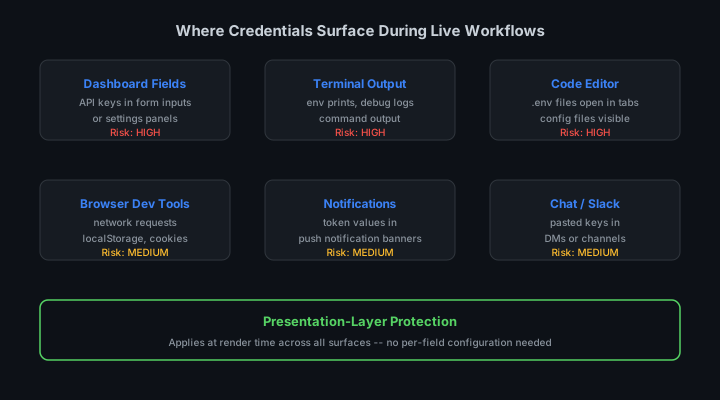
Docker desktop GUIs, Portainer, and other container management web UIs run in the browser. These interfaces often display environment variables for running containers. StreamBlur covers these surfaces the same way it covers any browser-rendered credential.
Terminal output from docker commands is a different surface. The system terminal is not a browser DOM. Presentation-layer browser protection does not cover docker exec output. For terminal-based Docker demos, the protection is in the environment: use placeholder credentials, audit startup logs, and avoid running env or docker inspect during screen shares.
The docker-compose.yml File and Embedded Credentials
The most direct Docker Compose credential exposure happens when developers embed secrets directly in the docker-compose.yml file. A typical pattern for quick local development is setting environment variables inline in the service definition: environment: STRIPE_KEY: sk_live_.... This works for local testing but becomes a security liability the moment the developer opens that file in an editor during a screen share or live stream.
The docker-compose.yml file is configuration-as-code. It lives in version control in many projects, which means embedded credentials in the file represent both a screen share risk and a version control risk. The file is also frequently shown during Docker tutorials and walkthroughs as an example of how to configure multi-container applications. A developer demonstrating a Docker setup without reviewing the docker-compose.yml content first may expose production credentials to their audience without realizing it. Docker Compose secrets provide a purpose-built mechanism for handling sensitive values that keeps them out of the main compose file.
Container Logs and Debugging Output During Demos
Running docker-compose logs or docker logs container_name during a demo surfaces all stdout and stderr output from the container. If the application logs environment variables at startup, prints API responses that include credentials, or emits debug statements containing secret values, those appear in the log output captured by the stream. Container logs are comprehensive by design, which makes them useful for debugging and dangerous for public demonstrations.
The safest approach for live demos is pre-filtering log output or using a demo-specific compose configuration that excludes verbose logging. Many applications support log level configuration via environment variables. Setting LOG_LEVEL=ERROR for a demo environment suppresses debug and info-level logs that are most likely to contain sensitive output while preserving error logs that demonstrate the application is running. Combining this with placeholder credentials in the demo environment creates a workflow where docker-compose logs can be run safely during a live session without risk of credential exposure.
Docker Secrets vs. Environment Variables
Docker Compose supports two mechanisms for passing sensitive data to containers: environment variables and Docker secrets. Environment variables are simpler to use and more widely understood, which makes them the default choice for many developers. Docker secrets, introduced in Docker Swarm and adapted for Compose, mount secrets as files inside the container rather than exposing them as environment variables visible via docker inspect or env commands.
For demonstration purposes, the distinction matters. A developer who runs docker exec container_name env to show the running environment during a live stream will print all environment variables, including any credentials set via the environment key in docker-compose.yml. Docker secrets accessed via file mounts do not appear in env output, which makes them significantly safer for live demo workflows. The application reads secrets from /run/secrets/secret_name rather than from $SECRET_NAME, and those file contents are not exposed through standard inspection commands.
The docker-compose exec and Inspection Commands
Docker Compose provides several commands for interacting with running containers that can surface credentials if used carelessly during a demo. docker-compose exec service_name sh opens a shell in the running container, and any command run in that shell, including printenv or cat /run/secrets/*, can print secret values to the terminal visible in the stream. docker-compose config outputs the fully resolved Compose configuration, which includes interpolated environment variable values.
Running docker-compose config during a troubleshooting session or demo to verify the configuration loads correctly will print any secrets embedded in the file or passed via .env files. The output is the complete, interpolated configuration with no masking. StreamBlur covers browser-visible interfaces for container management tools like Portainer or Docker Desktop's web UI, but terminal-based Docker commands require a dedicated demo environment with placeholder secrets to be shared safely.
Docker Compose is a powerful tool for local development and demonstration, but its design prioritizes ease of use over security in single-developer contexts. The patterns that make it convenient for local work, including environment variable interpolation, inline secret values, and comprehensive logging, all create surfaces that require conscious management when those workflows move into public demonstration contexts. The combination of dedicated demo compose files with placeholder secrets, log filtering, and Docker secrets for any values that must remain hidden creates a safe demonstration environment that preserves the benefits of Docker Compose while eliminating the most common credential exposure paths.
How docker compose up Exposes Credentials
Running docker compose up in a terminal during a live demo creates several credential exposure opportunities. The most direct is the compose file itself: if you open docker-compose.yml or docker-compose.override.yml in your editor to show the service configuration, any hardcoded credential values in the environment section are visible to your audience. Even if credentials are referenced via .env file substitution using the ${VARIABLE} syntax, opening the .env file to show where the values come from exposes the raw values.
Container logs are a second exposure vector. When services start, they often log their configuration including connection strings, API keys included in URLs, and authentication tokens. Running docker compose logs or watching the startup output with docker compose up in the foreground displays these log lines directly in your terminal. If a service is configured to log its full configuration at startup for debugging purposes, the entire credential set for that service appears in the terminal within the first few seconds of compose up.
The docker inspect command exposes environment variables from running containers in JSON format. If you run docker inspect container_name during a demo to show container details, the Env section of the output contains every environment variable passed to the container, including all credentials. This is a very common debugging action that produces complete credential exposure in a single command.
The Environment Variable Inheritance Chain
Docker Compose passes environment variables to containers through a chain that starts at the shell environment, flows through the .env file, into the docker-compose.yml environment declarations, and finally into the container runtime. Each step in this chain is a potential display surface during a demo.
Shell-level environment variables that are inherited by Docker Compose are particularly easy to expose accidentally. If you have export DATABASE_URL="postgres://user:password@host/db" in your shell configuration, running env | grep DATABASE or docker compose config will show that value. The docker compose config command is especially dangerous during demos because it renders the fully-resolved compose configuration with all variable substitutions applied, showing the actual credential values rather than the ${VARIABLE} references.
Volume Mounts and Credential Persistence
Docker volumes that mount credential-bearing files into containers create a persistent exposure path that survives container restarts. A common pattern is mounting a secrets directory into multiple containers: volumes: - ./secrets:/app/secrets:ro. If you demonstrate the volume mount by showing its contents with docker exec -it container_name ls /app/secrets or cat /app/secrets/api_key, the credential is exposed directly in the exec output.
For demos involving Docker secrets (the native Docker secrets feature using docker secret create), the secrets themselves are encrypted at rest, but they are decrypted and accessible inside the container at runtime. Running a shell inside the container and reading the secret file directly, a common debugging step during development, reveals the plaintext value in the terminal output.
Protecting Docker-Based Demos
The most effective protection for Docker-based demos is using a separate docker-compose.demo.yml override file with demo-specific credentials that have no production access. Switch to this override before starting your stream with docker compose -f docker-compose.yml -f docker-compose.demo.yml up. Demo credentials that are purposely limited to read-only access on a sandbox dataset eliminate the risk of production data access even if the credentials are captured.
For demos that must use real service configurations, sanitize your compose files before displaying them on screen. Temporarily replace real credential values in .env with clearly fake placeholders: DATABASE_URL=postgres://user:DEMO_PASSWORD@host/db. This makes the configuration structure visible while keeping real values off screen. Restore real values after the demo, or better, use environment-specific files that never mix demo and production values.
Use docker compose config --no-resolve-image-digests to check the rendered configuration privately before showing it during a demo. Review the output for any credential values before displaying it on screen. This pre-check catches the common failure mode of variable substitution that inserts a real credential value into an otherwise clean-looking config display.
StreamBlur covers the browser-based credential exposure surface for Docker workflows, including web-based Docker management UIs like Portainer and the Docker Desktop GUI dashboard. For terminal-based Docker workflows, the masking needs to happen at the terminal application level or through careful command selection during the live session. Combining browser-level masking with demo-specific credentials and careful command hygiene creates a layered protection approach for Docker-based live demonstrations.
Stop leaking secrets on your next stream
StreamBlur automatically detects and masks API keys, passwords, and sensitive credentials the moment they appear on screen. No configuration. Works on every tab, every site.
Used by streamers, developers, and SaaS teams. Free tier covers GitHub & terminal. Pro unlocks every site.