
API Key Safety Checklist: What to Do Before You Stream or Record Your Screen
You are about to go live. You have your OBS setup ready, your microphone is on, and you are about to click Start Recording. This is the moment when most API key exposures get locked in. Not because developers are careless , because they are focused on the content and not on the surfaces.
This checklist covers every surface where credentials can appear during a screen recording or live stream. Run through it before every session. The items that feel redundant are the ones that save you on the sessions where you are distracted.
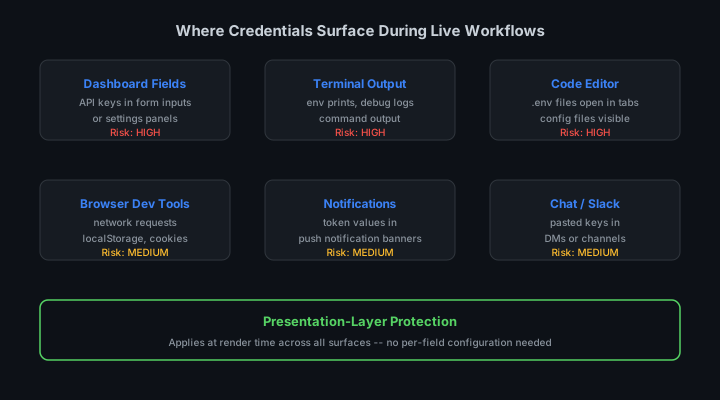
Terminal and Command Line
The terminal is the highest-risk surface for credential exposure. It displays whatever commands you run and whatever those commands output. A single command can print every environment variable on your system.
The most dangerous command during a live stream is one you run automatically without thinking. Commands like printenv, env, cat .env, and echo $VARIABLE_NAME are typed reflexively during debugging. Build the habit of not running these while screen sharing.
# Commands to avoid while screen sharing
printenv
env
cat .env
cat .env.local
echo $OPENAI_API_KEY
npm run dev  # check if startup logs print config values first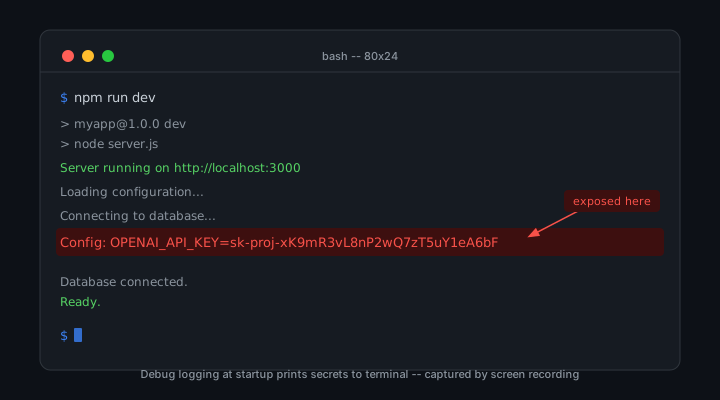
Open Files in Your Editor
Every file you have open in your editor is visible to viewers if you switch to that tab. Files you opened earlier in the session and left open are as much of a risk as files you are actively working on.
If your project structure makes credential files visible in the file explorer, consider collapsing the directory tree to a level where they are not shown. Viewers do not need to see your project file structure to follow along with your content.
Browser Tabs and Dashboards
- Close tabs with API dashboards before sharing screen
- Disable DevTools Network tab auto-recording
- Clear localStorage/sessionStorage if it contains tokens
- Use incognito/private mode for demos (no saved credentials)
- Mask authorization headers in Network panel
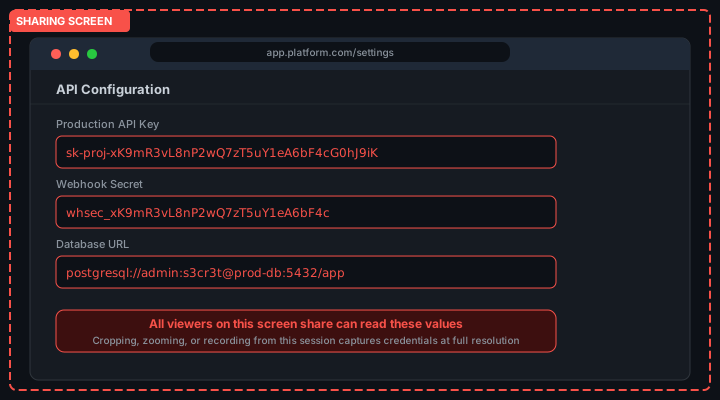
Browser dashboards that display API keys, webhook secrets, database credentials, or access tokens are a common exposure source. These tabs are often left open from earlier in the day and forgotten.
A practical approach is to create a dedicated browser profile for streaming. This profile has no saved credentials, no logged-in sessions to sensitive dashboards, and no browser extensions that might surface credential data. Use this profile for all screen recording and live streaming.
VS Code and IDE Settings
Modern IDEs have features that are extremely useful during development and extremely risky during screen sharing. Several of these are enabled by default.
OBS and Capture Setup
- Use window capture instead of full desktop capture
- Test your scene before going live
- Set up scenes with only necessary windows
- Avoid switching windows during live streams
- Use OBS filters to blur specific screen regions if needed
Your capture configuration determines what is actually recorded. Even if a credential appears on your screen, the right capture setup can prevent it from entering the recording.
OBS scene switching is a useful manual control. Create a scene called "safe" that includes only your editor and excludes the terminal. Switch to this scene before running any commands that might print credentials. Switch back to your full scene afterward.
AI Coding Tools
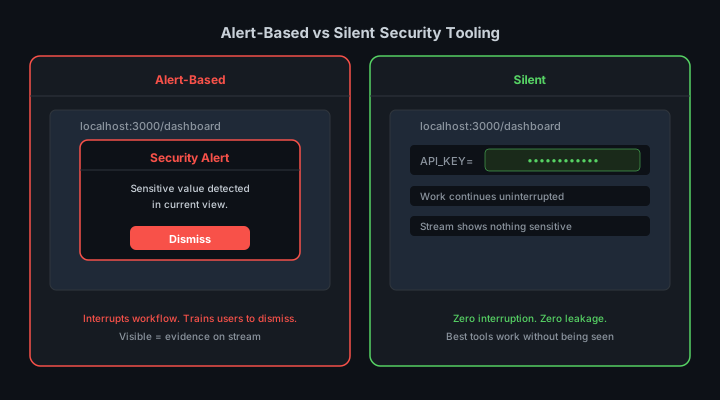
If you are using Claude Code, Cursor, GitHub Copilot, or any other AI coding assistant during your stream, the tool has access to your project files and may surface credential values in its output.
# Add to CLAUDE.md in your project root
# Privacy Rules for Live Sessions

- Do not print .env file contents to terminal
- Do not output raw API key or secret values
- Do not echo environment variable values
- When asked about configuration, confirm presence only: "key is set"
Automated Protection
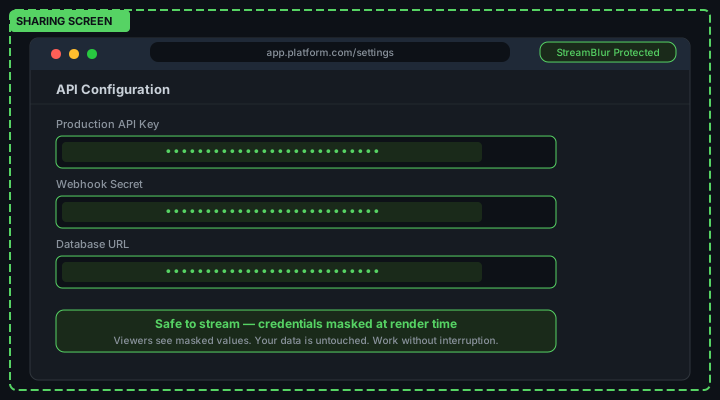
Manual checklists reduce the frequency of credential exposures. They do not reduce it to zero. Applications behave unpredictably during live sessions. Data fetches complete at unexpected times. Components re-render in states you did not anticipate.
The extension handles the async cases that manual preparation cannot: credentials that appear mid-session from data fetches, components that re-render after navigation, and AI tool output that surfaces values unexpectedly. It is the last line of defense after everything else has been done.
After the Session
Post-session review is as important as pre-session preparation. A review before you publish a recording or end an archived stream can catch exposures that made it through your preparation.
Rotation is the final safety net. If you have any uncertainty about whether a credential appeared in a recording that has been shared, rotate the credential immediately. Rotation is free, fast, and removes the risk entirely. The inconvenience of updating a rotated key is lower than the risk of a compromised credential remaining valid.
Quick Reference Card
Keep this list handy before every session:
Cloud Provider Consoles and Web Dashboards
Cloud provider web consoles deserve special attention before a stream. AWS, Google Cloud, and Azure all display credentials in various parts of their interfaces. The AWS IAM console shows access key IDs on the user detail page. The Google Cloud console displays service account key files as downloadable JSON that, if opened in a browser tab, renders all credential values. The Azure portal shows connection strings and access keys in resource configuration pages.
Close all cloud console tabs before streaming. If you need to demonstrate cloud console navigation as part of your stream, use a dedicated demo account with read-only permissions and no production credentials. Switching AWS profiles or Google Cloud projects to a demo context before going live keeps the stream safe without requiring you to avoid the cloud console entirely.
Secret Manager Interfaces
Web-based secret managers including HashiCorp Vault UI, AWS Secrets Manager in the console, and similar tools display secret values when explicitly requested. A developer who retrieved a secret value to verify it before a stream may have that value displayed in their browser. The secret manager interface may persist the revealed value until the page is refreshed or the tab is closed.
Check for any open secret manager tabs or panels before streaming. Treat revealed secret values in any interface the same way you would treat an open .env file. If you see a plaintext credential anywhere in your browser before going live, close that tab.
Shell History and Command Recall
Shell history presents a persistent credential risk that extends beyond what is currently visible in the terminal. A developer who set an environment variable by typing export OPENAI_API_KEY=sk-proj-... in a previous session has that command in their shell history. Using the up arrow or running history | grep KEY during a stream surfaces that historical command, including the credential value, even if the variable is no longer set in the current session.
Clear or scroll past any credential-containing history entries before streaming. Most shells support history -d to delete specific entries or history -c to clear the entire history. A cleaner approach is starting a new shell session with a cleared history before going live, ensuring that no historical credential entries can be recalled accidentally during the stream.
AI Tool Configuration Files
Configuration files for AI coding tools can contain or reference credentials. CLAUDE.md files, .cursor/rules files, and similar project instruction documents sometimes include API key values directly for convenience. These files may be open in your editor or accessible via extension panels during a stream. Review any AI tool configuration file in your project for embedded credential values before going live.
If your AI tool requires API keys for authentication, verify that those keys are loaded from environment variables rather than hardcoded in configuration files. Most AI tools support environment variable-based authentication as their primary pattern. Hardcoded keys in configuration files are both a streaming risk and a version control risk if those files are committed.
Notification and System Tray Applications
Desktop notification systems can surface credential-containing information in popups that appear on screen during a recording. Password manager applications that display a notification when they autofill a credential, email clients that show a preview of a message containing an API key, and Slack or Discord notifications that preview a message containing a token can all appear as overlays during a stream.
StreamBlur provides browser-layer protection, but desktop notification overlays are outside the browser DOM. Enable Do Not Disturb mode on your operating system before streaming to suppress all desktop notifications for the duration of your session. On macOS, this is Focus mode. On Windows, this is Focus Assist. On Linux, notification daemon settings vary by desktop environment but all major environments support temporary notification suppression.
Running through this checklist before every stream or recording session takes about three minutes once it becomes a habit. The first few times require conscious effort. After a dozen sessions, it becomes as automatic as checking that your microphone is unmuted before going live. The goal is not to make streaming more complicated. It is to ensure that the work of building and demonstrating software in public does not create credential exposure events that require hours of damage control to address. Three minutes before a stream is a significantly better investment than rotating all your API keys after one.
One final check that many developers overlook is their password manager browser extension. Password managers that auto-fill credentials in web forms can trigger on API key input fields in web-based developer tools, displaying the stored credential briefly in the input field before the page registers the fill event. If your stream capture frame includes any web form that accepts API keys, disable the password manager auto-fill for that tab before going live. Most password manager extensions support per-tab or per-site disabling in their extension settings. This takes ten seconds and eliminates a category of exposure that is otherwise invisible until it happens on stream in front of an audience.
Streaming and screen recording as a developer practice is growing rapidly. Build-in-public culture, tutorial content, technical interviews, and pair programming sessions all put developer screens in front of audiences. The tools and workflows that make these sessions productive, including AI coding assistants, cloud dashboards, API clients, and real-time collaboration platforms, also create more credential exposure surfaces than ever before existed in a typical development session. A thorough pre-stream checklist is not a response to a niche edge case. It is a practical necessity for any developer who works in public, regardless of how experienced they are or how careful they consider themselves to be.
Understanding the Attack Surface Before You Go Live
Every surface that displays data from your application is a potential credential exposure point during a stream. The attack surface is larger than most developers initially assume because credentials appear in more places than the obvious ones. The obvious places are .env files, terminal output from printenv, and API client request headers. The less obvious places are application error messages that include configuration values, browser extension panels that display API tokens, CI/CD pipeline log outputs visible in a browser tab, and dashboard panels that show "masked" values that un-mask on hover.
Understanding the full attack surface before you go live means walking through your entire workflow as if you were a viewer. Start your application in the same state you will be in when the stream starts. Navigate every panel, open every tab, and run every command you plan to demonstrate. For each step, ask: if this were captured in a screenshot right now, would a credential be visible? This dry-run approach catches the exposures that are invisible during normal solo development because they only become visible when you think about them from the outside.
The Pre-Stream Environment Audit
Close all files containing credentials in your editor before starting the stream. This includes .env, .env.local, *.pem, config.json, and any other file that contains credential values. If your editor has a file history or recently opened files list, those files may appear in search results or autocomplete suggestions even when closed.
Check your shell history. If you have recently run commands that included credentials as arguments, such as curl -H "Authorization: Bearer sk-..." or export API_KEY=..., those commands are in your terminal history. Running history accidentally, or pressing the up arrow at the wrong time, will display them. Use history -d to remove specific entries, or clear the session history with history -c before starting the stream.
Audit your browser tabs. Close any tab that displays raw credential values: cloud provider consoles showing API keys, service dashboards with token displays, OAuth application detail pages, and any tab where you have previously viewed a credential. Browser tabs can be switched to accidentally during a stream, and the tab bar itself may show enough of a URL or page title to indicate sensitive content.
Check your clipboard. If you have recently copied a credential value for pasting, it remains in your clipboard and can be accidentally pasted into visible text during the stream. Clear your clipboard before going live, or use a clipboard manager that separates stream-time clipboard from historical entries.
Application-Layer Checks
Verify that your application uses demo credentials rather than production credentials for any live demonstration. Create API keys specifically for streaming with minimal permissions, so that even if they are exposed, the blast radius is limited. Name them clearly in your provider's dashboard so you can identify and revoke them quickly after the stream.
Check error handling in your application. Error messages often include configuration values, connection strings, and API responses that contain credential material. Trigger deliberate errors in your demo before going live to confirm that error output is sanitized. A database connection error that includes the connection string is a common and serious exposure pattern that is invisible until it happens live.
Test your application's "show/hide" toggles for sensitive fields. Many dashboard UIs have fields that display masked values but show them on hover or click. Verify that these toggles behave as expected and that the un-masked value is not also rendered in the DOM in a hidden-but-selectable state. Some implementations render the full value in the HTML and use CSS to hide it, meaning the value is in the source and visible in DevTools even when not displayed on screen.
During the Stream: Active Monitoring
Install StreamBlur in your browser before going live. It applies continuous credential masking to browser-rendered content including terminal emulators, API client web UIs, cloud provider dashboards, and any web application that displays sensitive values. The masking is automatic and requires no per-session activation. This is your last line of defense for browser-based credential exposure.
Keep a second monitor or window showing your stream preview if your setup allows it. Watching your own stream output for a few seconds before and during sensitive demo sections is the most direct way to catch credential exposure before it reaches a large audience. What looks private on your full screen may be clearly visible in the stream-quality output.
After the Stream: Rotation and Cleanup
- Review the recording/VOD for any exposed credentials
- Rotate any keys that were visible (even briefly)
- Check API usage logs for unauthorized activity
- Edit/delete VOD sections showing credentials
- Document any exposures in an incident log
Rotate every credential that was active in your application during the stream. This is true even if you followed every precaution above. Rotation is cheap and rotation intervals are short. The cost of rotating an API key is five minutes. The cost of not rotating a key that was captured during a stream is potentially significant, especially for keys with write access to data stores or billing-enabled cloud APIs.
Review the stream recording before it goes public. Most streaming platforms allow a delay between stream end and public availability. Use that window to watch the recording at 2x speed, looking for any frame where credential values might have appeared. If you find one, trim the video or add a blurring effect in post-production before the recording is accessible to viewers.
Document what credentials were active during the stream and when you rotated them. A simple log entry noting the date, stream topic, credentials in scope, and rotation timestamp gives you an audit trail. If a report surfaces months later that a credential from a demo was used inappropriately, you will know when it was rotated and can confirm the exposure window was closed.
Stop leaking secrets on your next stream
StreamBlur automatically detects and masks API keys, passwords, and sensitive credentials the moment they appear on screen. No configuration. Works on every tab, every site.
Used by streamers, developers, and SaaS teams. Free tier covers GitHub & terminal. Pro unlocks every site.