
How to Rotate API Keys After a Live Stream or Screen Share Exposure
You noticed it. An API key appeared on screen during your stream or screen share. Maybe someone in chat warned you. Maybe you caught it in your recording review. Maybe you spotted it yourself mid-session. The key was visible. Now you need to move fast.
Credential rotation is not complicated, but it has a specific sequence. Do it in the wrong order and you create downtime. Do it too slowly and someone else uses your key before you invalidate it. This guide walks through the exact steps, with rotation instructions for the most common services.
The First 60 Seconds: What Actually Matters
Speed is everything in the first minute. The priority order is simple: invalidate the exposed key before anything else. Not notify your team. Not review the recording. Not write an incident report. Invalidate the key first.
Every second the old key is valid is a second it can be used by someone who extracted it from your stream. For high-value keys like production Stripe secret keys or AWS access keys, this window matters.
- Revoke the exposed key immediately
- Generate a new key
- Update your application with the new key
- Verify the old key is no longer valid
- Check logs for unauthorized usage
- Document the incident
Everything else happens after this sequence is complete. The key is dead. The new key is in place. Now you can investigate.
Rotation Steps by Service
OpenAI API Keys
OpenAI API keys beginning with sk-proj- are project-scoped keys. Keys beginning with sk- (legacy) are user keys.
- Go to platform.openai.com/api-keys
- Click "Revoke" on the exposed key
- Click "Create new secret key"
- Copy the new key immediately (shown only once)
- Update your
.envfile or environment variables - Test a small API call to confirm the new key works
- Check the usage dashboard for any anomalies
- Set monthly spending limits if not already configured
After rotation, check your OpenAI usage dashboard for any unusual activity during the window when the key was exposed. Unauthorized usage typically shows as a spike in token consumption from unfamiliar models or unusual request patterns.
# Verify new key is working
curl https://api.openai.com/v1/models \
  -H "Authorization: Bearer $OPENAI_API_KEY"
# Should return model list, not 401
Stripe API Keys
Stripe has separate publishable keys and secret keys. The secret key starting with sk_live_ is the high-value credential. The publishable key starting with pk_live_ is less sensitive but should also be rotated if exposed.
- Go to dashboard.stripe.com/apikeys
- Click "Roll" next to the exposed secret key
- Copy the new secret key
- Update your backend environment variables
- Deploy the update to production
Stripe's rolling key approach is more graceful than immediate deletion. The old key remains valid for a short window while you update your application. Use this window efficiently. After the rollover is confirmed, the old key is permanently invalid.
GitHub Personal Access Tokens
GitHub fine-grained personal access tokens are scoped to specific repositories and permissions. If you exposed a classic token with broad permissions, consider replacing it with a fine-grained token scoped to only what is necessary.
- Go to github.com/settings/tokens
- Find the exposed token and click "Delete"
- Click "Generate new token" (fine-grained or classic)
- Set the same scopes and repository access as the old token
- Copy the new token
AWS Access Keys
AWS access keys are among the most dangerous credentials to expose. An active AWS access key with broad permissions can be used to incur significant charges or access sensitive data within minutes of exposure.
- Go to IAM Console → Users → Your user → Security credentials
- Click "Make inactive" on the exposed access key
- Verify nothing critical broke (wait 5-10 minutes)
- Click "Delete" on the inactive key
- Click "Create access key" to generate a new pair
After rotating, check AWS CloudTrail for any API calls made with the exposed key during the exposure window. Pay particular attention to IAM changes, new user creation, and any compute or storage operations you did not initiate.
# Check for unauthorized CloudTrail activity
aws cloudtrail lookup-events \
  --lookup-attributes AttributeKey=AccessKeyId,AttributeValue=AKIAOLD... \
  --start-time 2024-01-01T00:00:00 \
  --end-time 2024-01-01T23:59:59
Anthropic API Keys
Anthropic API keys begin with sk-ant-. Keys are workspace-scoped and can be revoked immediately.
- Go to console.anthropic.com/settings/keys
- Click "Delete" on the exposed key
- Click "Create Key"
- Name the key descriptively
- Copy the new key
- Update environment variables
- Check usage logs for anomalies
Vercel and Netlify Environment Variables
These are not API keys themselves but often contain API keys stored as environment variables. If you exposed your Vercel project environment variables, the keys stored there need to be rotated at their respective services, then updated in Vercel.
- Rotate the actual API key first (OpenAI, Stripe, etc.)
- Go to your Vercel/Netlify project settings
- Find the environment variable containing the old key
- Update it with the new key value
- Trigger a new deployment to apply the change
Checking Whether the Exposed Key Was Used
After rotating, determine whether the exposed key was used by anyone other than you during the exposure window. This tells you whether you have a confirmed breach or just a close call.
OpenAI Usage Logs
Check the Usage section of the OpenAI platform dashboard. Filter by date to show activity during the exposure window. Look for requests from IP addresses you do not recognize, unusually high token consumption, or API calls to models you do not normally use.
- Unusual spike in requests immediately after exposure
- Requests from unexpected IP addresses
- API calls to endpoints your application does not use
- Abnormal token consumption patterns
Stripe Logs
Stripe Dashboard > Developers > Logs shows every API request made with your keys. Filter by time window and look for requests you did not initiate. Pay particular attention to any charge creation, refund, or payout operations.
AWS CloudTrail
CloudTrail logs every AWS API call. Search by the access key ID of the exposed key. Any call you did not make is a confirmed unauthorized access. Escalate to your security team immediately if you find unauthorized CloudTrail activity.
GitHub Audit Log
Organization accounts have an audit log under Settings > Audit log. Personal accounts can review recent security activity at github.com/settings/security-log. Look for any operations performed during the exposure window that you do not recognize.
After Rotation: Preventing the Next Exposure
The rotation is complete. The immediate risk is addressed. Now is the right time to add protection that prevents this from happening again.
Immediate Steps: Revoke Before You Investigate
The correct sequence when you discover that an API key appeared on stream is revoke first, investigate second. The moment of discovery is not the moment to review stream VODs, check viewer counts, or assess the scope of exposure. Those activities can happen after the credential is revoked. Every minute the credential remains active after you know it was exposed is additional risk.
For most API providers, revocation is a single API call or dashboard action that takes under ten seconds. OpenAI, Stripe, AWS IAM, and similar services provide immediate revocation interfaces. Revoking the key does not delete it from the provider's audit logs or usage history. It only prevents future use. This means revoking immediately carries no information loss. You can still review how the key was used after revoking it. Delaying revocation to "understand what happened first" provides no benefit and extends the exposure window.
Generating and Deploying the Replacement Key
After revoking the exposed key, generate its replacement immediately. Most API providers issue the new key instantly. The new key should be stored in your secrets management system and deployed to all services that were using the old key before those services begin failing due to authentication errors. For production systems, this means updating the key in your secret store, triggering a deployment or configuration reload, and verifying that services are authenticating successfully with the new key.
The window between revoking the old key and deploying the new one is a service interruption window. Production systems using the revoked key will begin failing authentication. Minimizing this window requires preparation. Know where your credentials are stored, how to update them, and how to trigger a reload or redeploy before an exposure event happens. Practice the rotation sequence during a planned maintenance window so the steps are familiar when you need them urgently.
Provider-Specific Rotation Procedures
Different API providers have different revocation and rotation interfaces, and some are more complex than others. AWS IAM access keys require creating the new key before deleting the old one, then updating all services to use the new key, then verifying the old key is no longer in use, then deleting it. Stripe allows having multiple active keys simultaneously, which simplifies the rotation process. OpenAI supports multiple keys per project, making zero-downtime rotation straightforward.
For each critical API you use, document the rotation procedure in your runbook before you need it. Include the exact URL for the revocation interface, the command or API call to generate a new key, and the deployment steps to update your services. During an exposure event, decision fatigue and time pressure make it easy to miss a step. A pre-written procedure that you can follow mechanically is significantly more reliable than trying to remember the steps under stress.
Notification and Disclosure Obligations
Depending on the nature of the exposed credential and the contractual obligations of your organization, you may have disclosure requirements after a credential exposure. If the exposed key had access to customer data, PCI-regulated payment information, or HIPAA-protected health records, your compliance team may need to be notified immediately. Some industries require disclosure to affected parties within specific time windows after a breach is discovered.
Even in the absence of formal compliance requirements, internal notification is often appropriate. If the exposed key belonged to a shared service account, the other users of that account should know the key was rotated so they can update their local environments. If the key was scoped to a production environment, the on-call team should be aware in case the rotation causes unexpected behavior. A two-sentence message in your team chat after a rotation, "Rotated production Stripe key due to screen share exposure, new key deployed and verified," provides context that prevents confusion when colleagues encounter authentication changes.
Post-Rotation Review and Process Improvement
After the immediate crisis of revoking and rotating the exposed credential, review how the exposure happened and what process changes would prevent it next time. If the key appeared because an .env file was open in the editor, add "close all .env tabs" to your pre-stream checklist. If it appeared in a terminal command, document a safe alternative command pattern that uses placeholders. If it appeared in a browser dashboard, add that dashboard URL to your list of tabs to close before streaming.
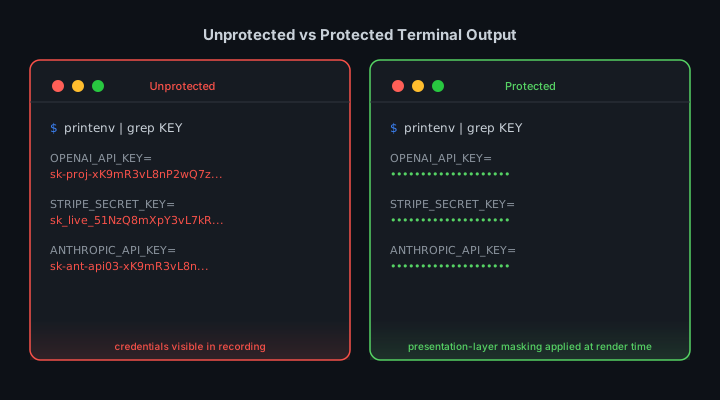
Credential rotation events are high-signal learning opportunities. The cost of the exposure has already been paid. Extracting the lesson and encoding it in your process is the only way to ensure that specific exposure pattern does not repeat. StreamBlur provides continuous browser-layer protection, but no tool eliminates all risk. Combining automated tools with process discipline learned from past exposures creates layered protection that improves over time.
Credential rotation after exposure is not a one-time event. It is a process that includes revocation, replacement, deployment, verification, notification, and learning. Each step matters, and skipping any of them introduces risk or missed opportunity for improvement. The developer who treats rotation as a mechanical checklist they can execute quickly and accurately, even under stress, is significantly better positioned to handle credential exposures than the developer who approaches each rotation as a novel problem requiring fresh decision-making. Building that mechanical competence requires practice during non-crisis windows and documentation that encodes the learned procedures. The time to prepare for credential rotation is before you need it, not during the exposure event when every minute of delay extends the window of risk.
Assessing the Blast Radius
Before rotating, spend two minutes understanding what you are rotating. A blast radius assessment answers: what can this credential do, what data can it access, and what actions can it authorize? A read-only API key for a public dataset has a minimal blast radius. A key with write access to a production database or billing-enabled cloud API has an enormous blast radius. Knowing the blast radius helps you prioritize rotation urgency and scope.
Check whether the exposed credential is scoped. Many APIs allow credential creation with limited permission sets. An OpenAI API key scoped to a specific project can only access that project's resources. A Stripe API key scoped to read-only cannot create charges. If the exposed credential has narrow scope, rotation is still necessary, but the urgency and the post-incident investigation required are proportionally lower.
Check your API provider's dashboard for recent usage. Most cloud providers log API key usage with timestamps. After a potential exposure, review recent activity on the key before rotating it. Unusual activity, calls from unfamiliar IP addresses or at unexpected times, may indicate the key was already used by a third party following the exposure. This evidence informs whether to treat the incident as a confirmed breach requiring further investigation or a precautionary rotation.
Provider-by-Provider Rotation Guide
For OpenAI API keys, go to platform.openai.com/api-keys. Delete the exposed key and create a new one. Update your application's environment configuration with the new key. OpenAI keys are tied to an organization, so check whether other team members were also using the exposed key before deleting it.
For AWS credentials, use the IAM console to deactivate and then delete the exposed access key. Create a new access key for the same IAM user. Update all applications and services using the key, including CI/CD pipelines, environment variable stores, and local development configurations. Note that AWS does not allow more than two access keys per user, so you may need to delete the old key before creating a new one.
For GitHub personal access tokens, go to github.com/settings/tokens. Delete the exposed token and generate a replacement with the same scopes. Update any integrations using the token, including webhooks, GitHub Actions repository secrets, and local git configurations. For GitHub Apps and OAuth tokens, use the corresponding settings pages in the GitHub developer settings.
For Stripe API keys, the Stripe Dashboard under Developers > API Keys allows immediate key rotation. Stripe provides a "Roll" button that creates a new key and sets a deadline for the old key to expire, allowing a grace period for updating all integrations before the old key stops working. This is safer than immediate deletion if multiple services depend on the key.
For database connection strings containing credentials, the rotation process depends on the database provider. Most managed database services, including RDS, Cloud SQL, and Supabase, allow credential rotation through their management console. The key challenge is updating all services that hold the connection string simultaneously, or tolerating a brief period where some services use the old credential and others use the new one during the transition.
Post-Rotation Verification
Rotation is complete only when the old credential is confirmed inactive and all dependent services are confirmed operational with the new credential. Test each service that depended on the rotated credential by triggering an operation that uses the credential. Confirm the response is successful, indicating the new credential is correctly configured, and not an authentication error, indicating the service was missed during the update.
For multi-service architectures, post-rotation verification may require checking a dozen or more services. A simple verification checklist that lists each service and its credential status, confirmed working with new key versus pending update, prevents the common failure mode of missing one service during a rotation event. Services that are not verified working with the new key remain vulnerable if the old key is not yet revoked.
Building Rotation Into Your Workflow
Post-stream rotation should be a default step in your streaming workflow rather than a reactive measure triggered by a known exposure. Treat every stream as a potential exposure event. Create a post-stream checklist that includes credential rotation as a standard step, the same way you close your recording software, save your session notes, and back up your work.
Automation can handle parts of this workflow. Some CI/CD platforms support automated credential rotation on a schedule. Cloud providers increasingly offer managed secret services that handle rotation automatically and update dependent services. AWS Secrets Manager and Google Cloud Secret Manager both support automatic rotation with Lambda or Cloud Function hooks that update dependent services when a secret is rotated.
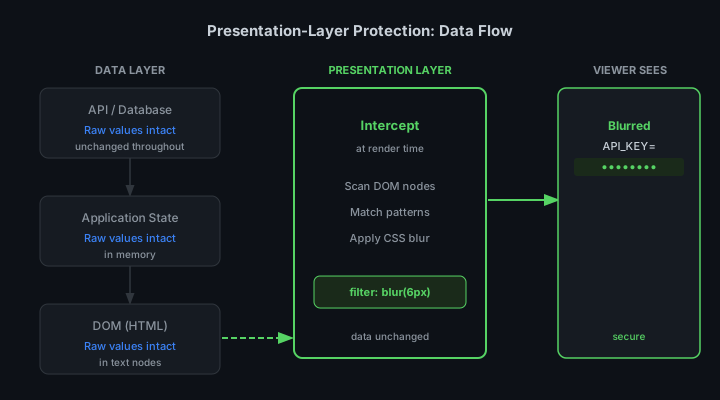
StreamBlur reduces in-session credential exposure by masking credentials in browser interfaces before they are captured by stream recording. But masking is not a substitute for rotation: it reduces the probability of successful credential capture during a session, while rotation eliminates the value of any capture that occurred. The defense-in-depth approach uses both: masking during the session and rotation after it.
Stop leaking secrets on your next stream
StreamBlur automatically detects and masks API keys, passwords, and sensitive credentials the moment they appear on screen. No configuration. Works on every tab, every site.
Used by streamers, developers, and SaaS teams. Free tier covers GitHub & terminal. Pro unlocks every site.